
Welcome
1. Introduction
GPS Air Navigator is a moving-map application for VFR (Visual Flight Rules) air navigation, built for pilots who need reliable maps, airspace and aeronautical data on their Android device.
- Real-time moving map with GPS position, North-Up or Track-Up orientation
- Offline maps and aeronautical data, downloadable by country
- Route planning with multiple legs and flight profile
- Airspace proximity awareness and alerts
- GRAMET route weather profile
- Position Report and MAYDAY emergency function
- Automatic and manual flight Logbook
- Aerodromes, heliports, VFR reporting points and radio navaids (VOR / DME / NDB) on the map, each with its own layer
- Edit the flight profile by dragging circles on the terrain graph and on the GRAMET
- Pilot and aircraft logbook summaries (flights, flight time, distance, landings)
- Brazil: updated DECEA WAC and REA charts, now in just six files
- Flight simulator mode: use the app with X-Plane or Microsoft Flight Simulator to practise at home
- Sacred Six analog instruments (airspeed, attitude, altimeter, turn, heading, vertical speed) plus two stopwatches
- VAC charts and documents per waypoint: import an aerodrome chart, align it and see it on the map; photos, files and notes
- Airspace zones in the terrain graph and GRAMET, TRA / TSA types and zones classified correctly by name
- Squawk field in the Position Report; MAYDAY now always heads for the nearest aerodrome
- New offline world map with country names, capitals and main highways
Get Ready to Fly
2. Downloading Maps & Data
Before your first flight, download the aeronautical data and maps for the country (or countries) where you will fly. Everything is then available offline.
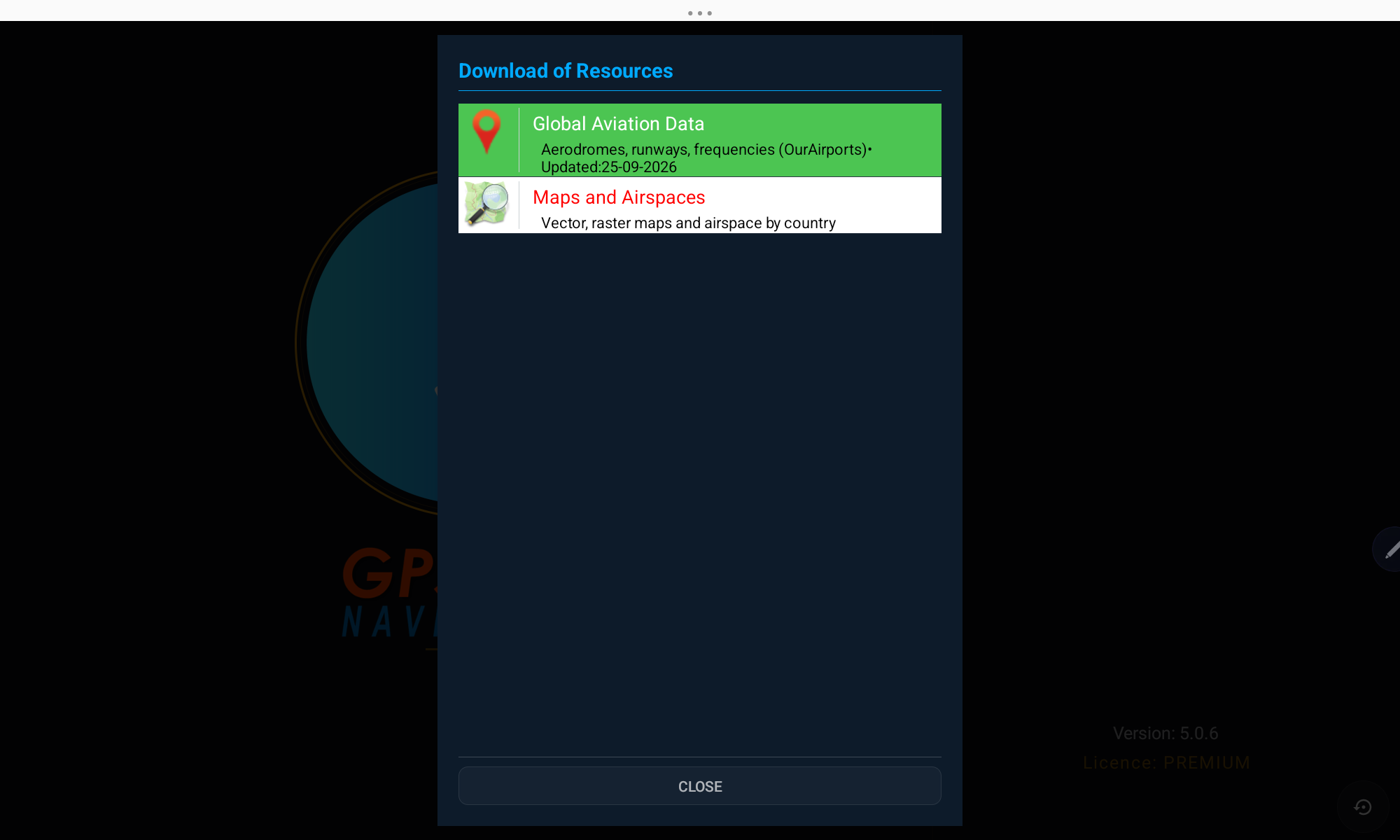
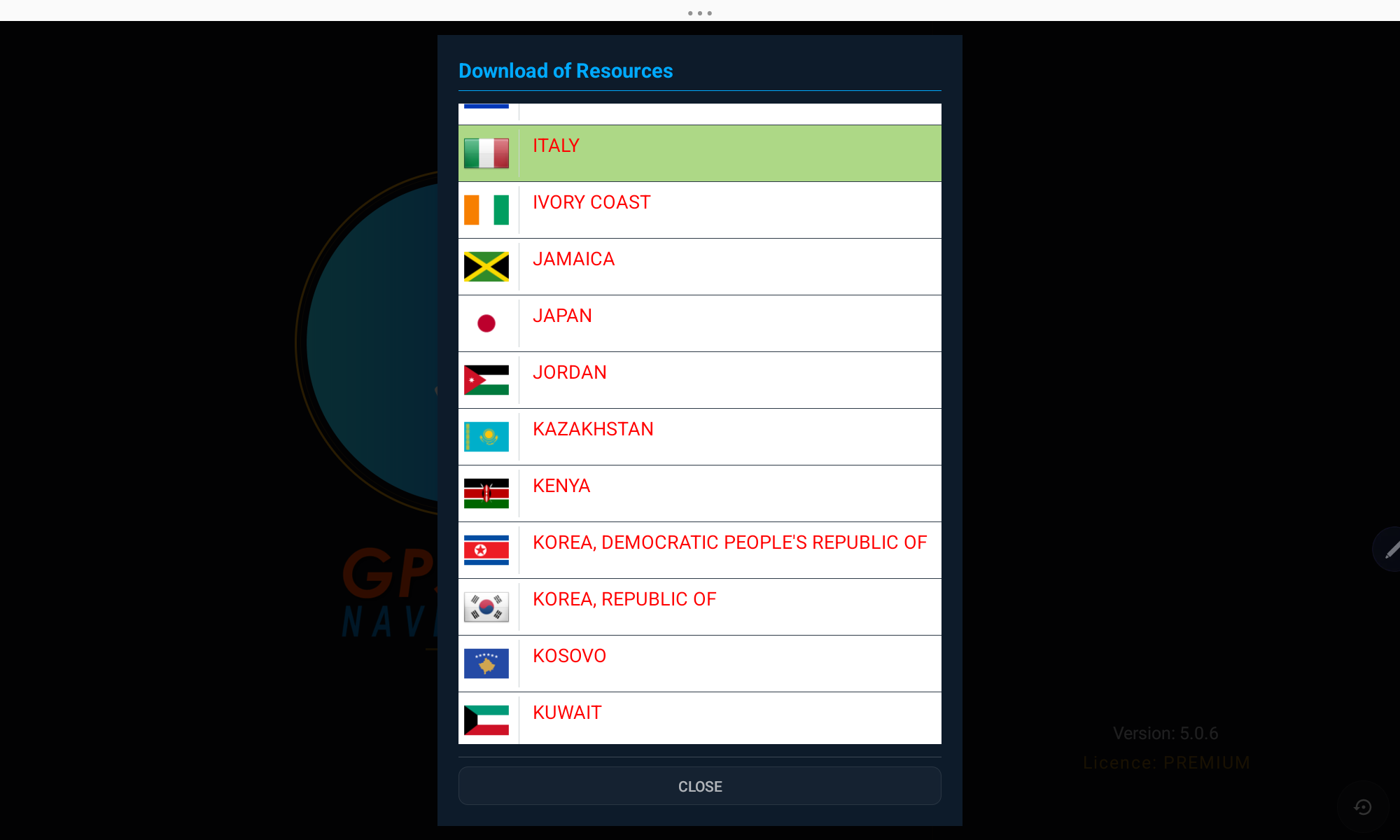
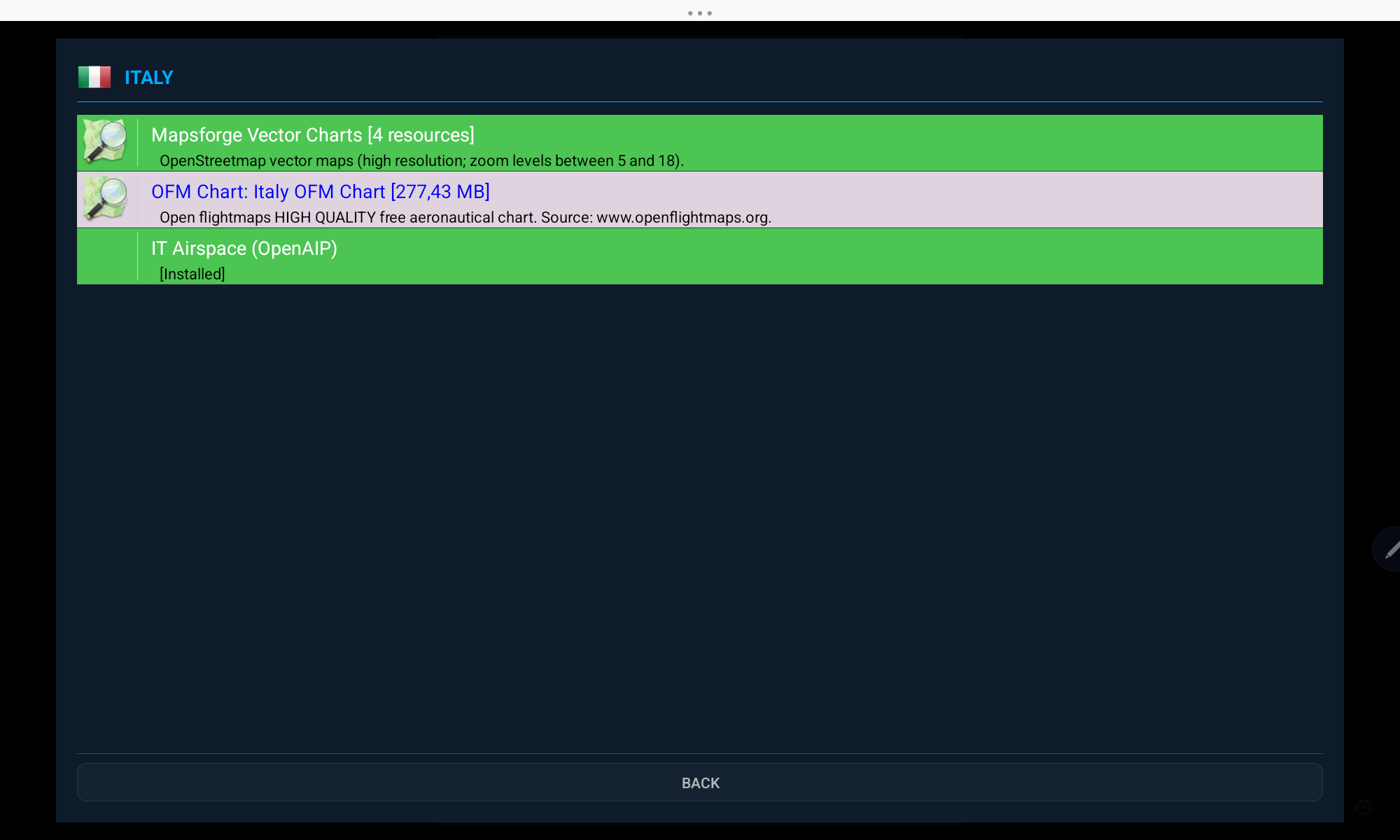
Available chart types
- Mapsforge Vector Chart — free, high-resolution OpenStreetMap-based vector maps (zoom 5–18)
- OFM Chart — high-quality free aeronautical charts by OpenFlightMaps
- WAC Chart — official World Aeronautical Charts published by national authorities
- OpenAIP Airspace — airspace boundaries and classes for the selected country
- FLYERMaps Chart — premium high-quality VFR charts (paid)
Brazil: DECEA WAC and REA charts
The official DECEA charts of Brazil have been updated and integrated into just six files, so there are far fewer downloads than before:
- 3 WAC files — WAC Brasil Norte-Oeste, Norte-Leste and Sul (north-west, north-east and south), together covering the whole country
- 3 REA files — WAC+REA Brasil Norte-Oeste, Norte-Leste and Sul: the same regional WAC with the REA charts (Rotas Especiais de Aeronaves) overlaid — where a REA exists it is shown, everywhere else you see the WAC
- When you download one of the new files, the app automatically removes the old single-sheet WAC/REA charts and switches the map to the new one
Keeping your data up to date
In the Downloads lists, a country — and each group of resources — turns yellow when any installed resource has an update available, and each installed resource shows its installation date. Airport data, airspace data and the free vector / OpenFlightMaps charts are also flagged as due for update after 40 days.
New world map, fresh airspace data
- The built-in world map (the one you see when no detailed chart is installed) was redone: coastlines, borders, main motorways, country names, capitals and larger cities. It is replaced automatically the first time you open the app after the update.
- The airspace classification was corrected (see Airspace). Countries whose airspace must be downloaded again appear in yellow in the Downloads list — tap them to update.
Unlock the Full App
3. License & Subscription
GPS Air Navigator can be tried for free, then unlocked with an annual subscription or a one-time lifetime license.
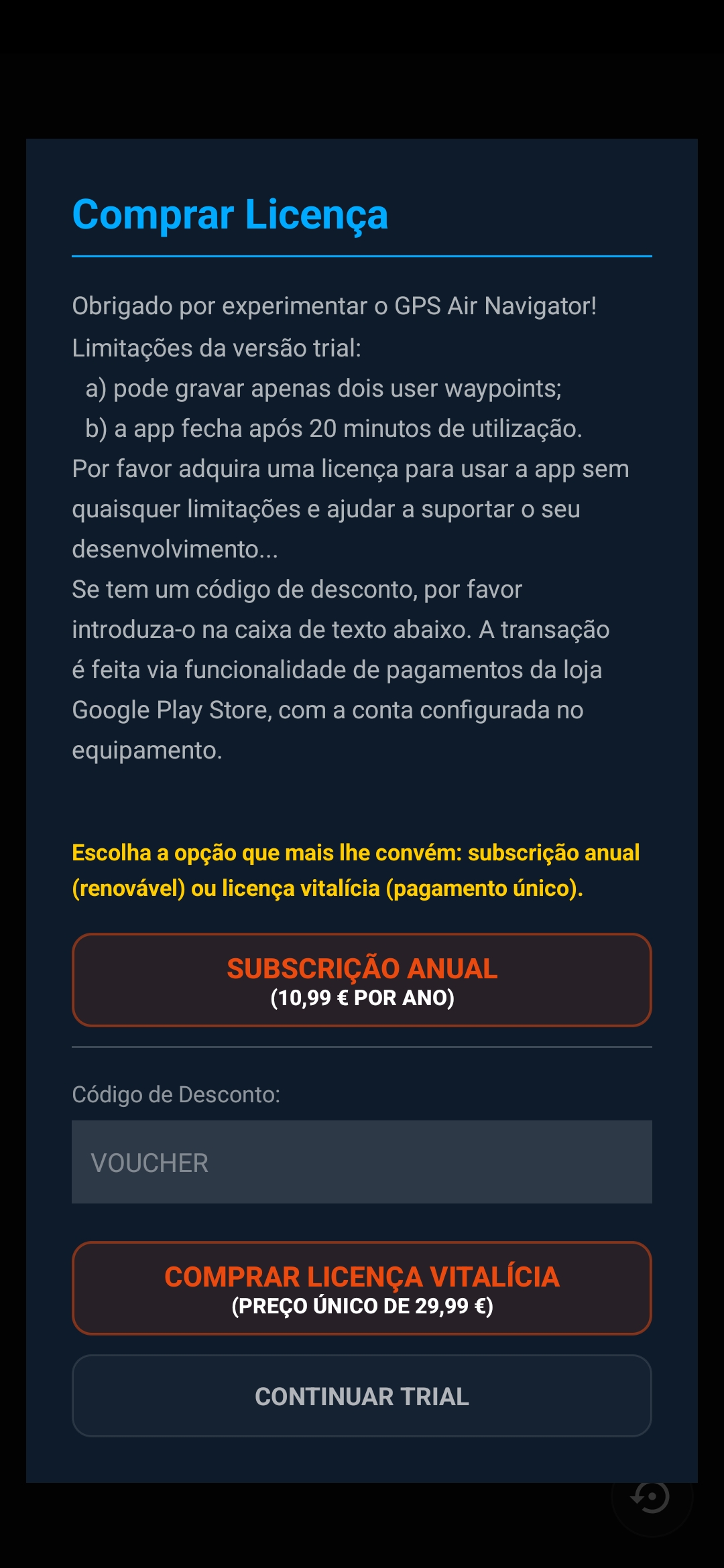
- Trial — limited to 2 saved user waypoints and 20 minutes of use per session
- Annual subscription — full access, renews every year
- Lifetime license — one single payment, full access forever
- Have a discount code? Enter it in the voucher field before purchasing
- The purchase window is not shown during your first two launches — from the third launch on it appears at start-up. You can always close it and keep trying the app
Payments are processed securely through the Google Play Store, using the account configured on your device.
Two Layouts
4. The Main Screen
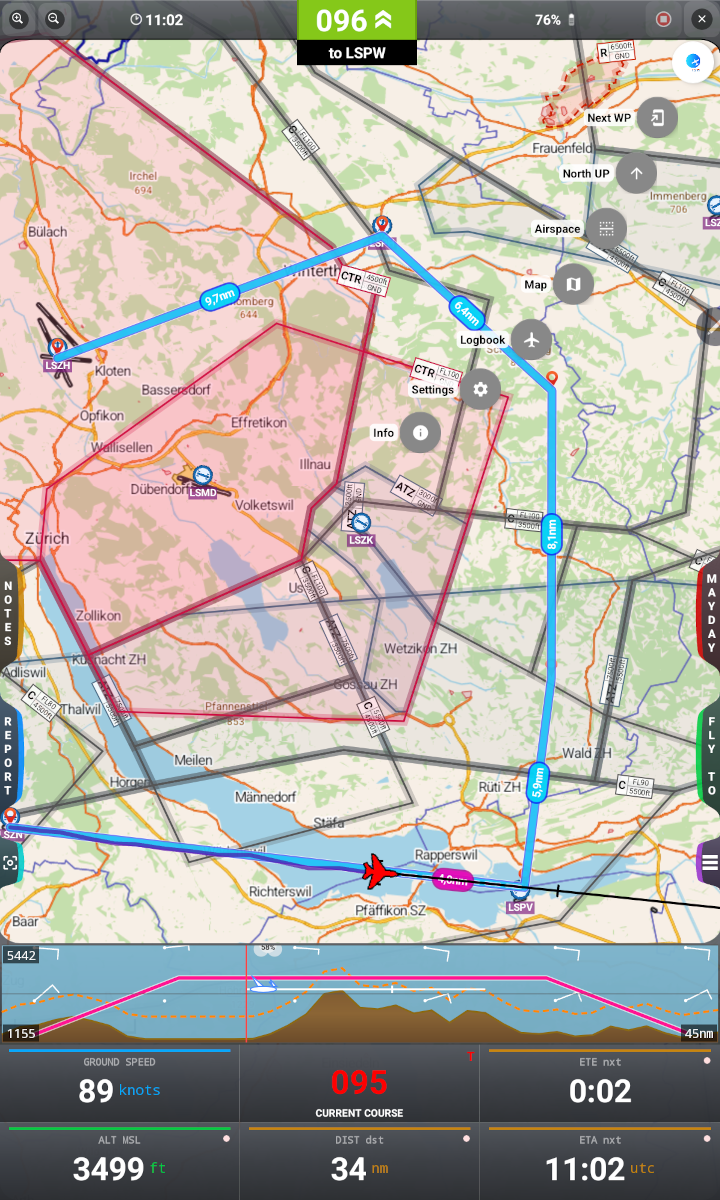
The app adapts automatically to the orientation of your device. In landscape mode, the four main buttons are arranged along the left and right edges; in portrait mode, the same buttons are stacked on the sides of the screen.
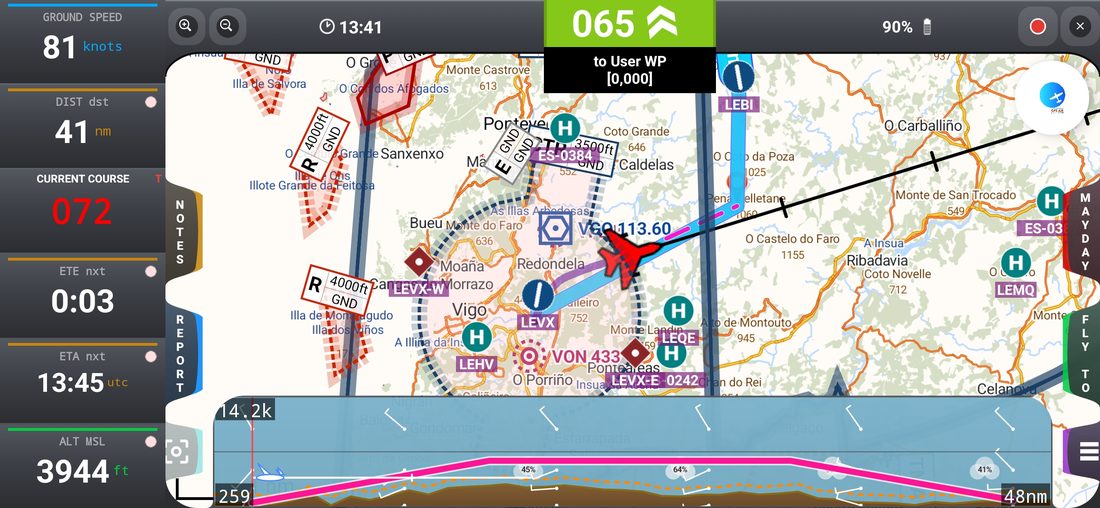
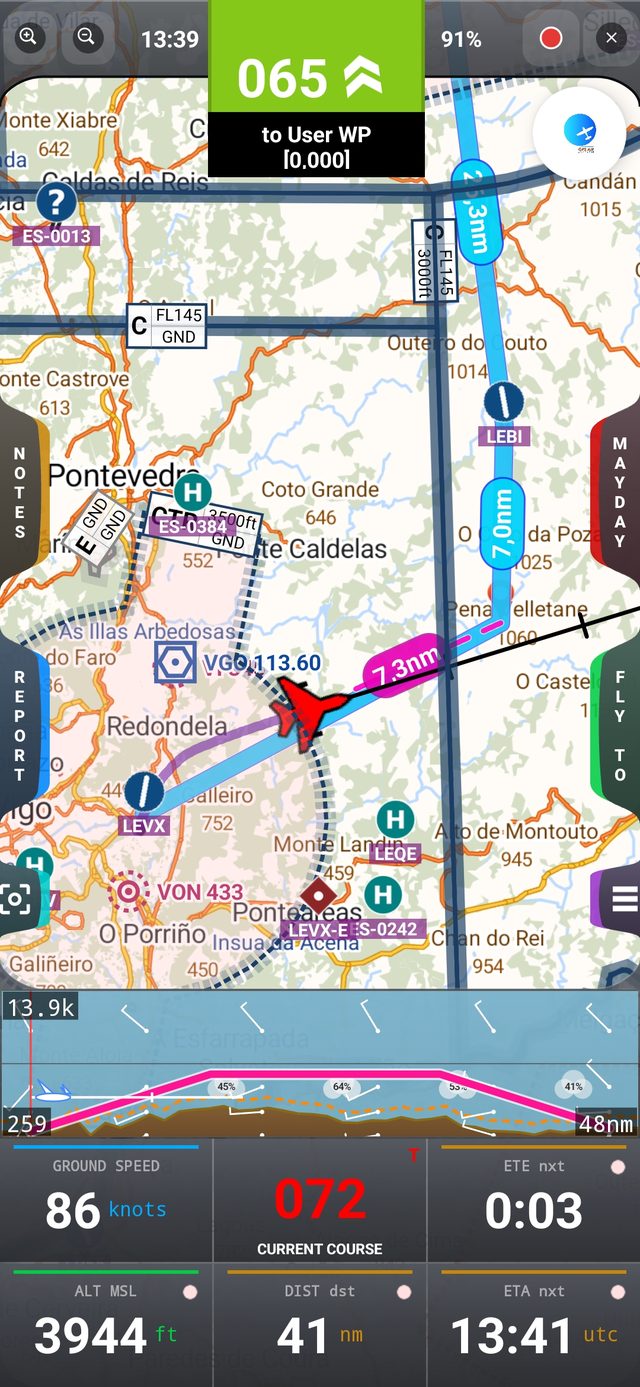
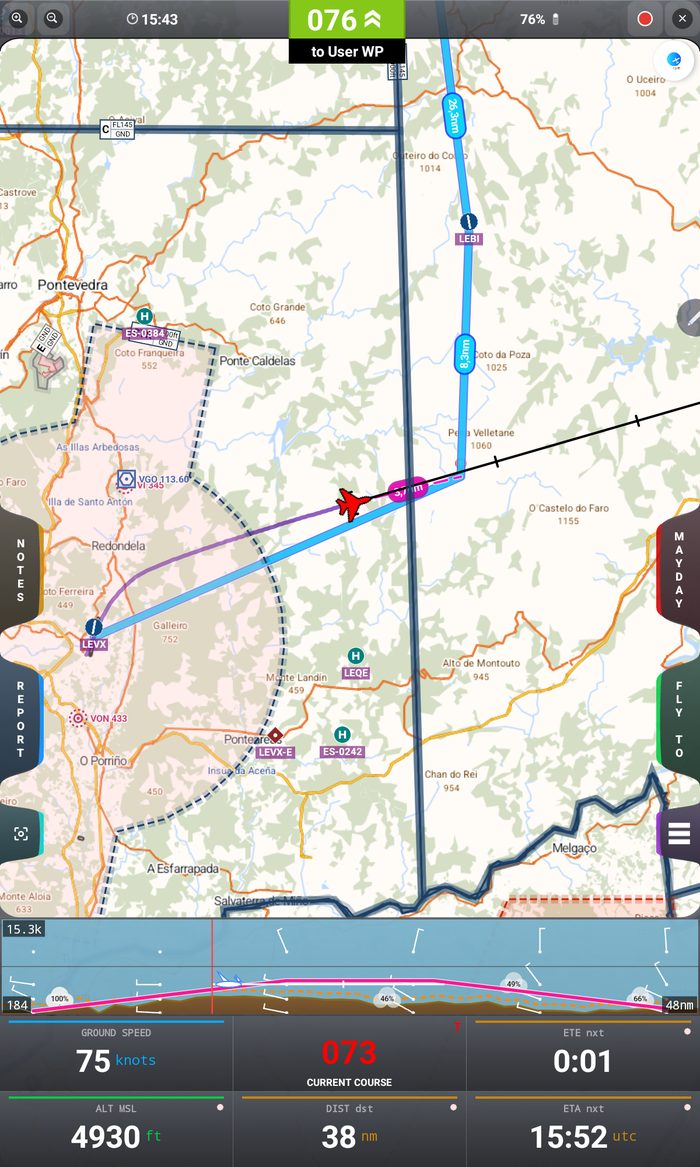
On tablets the main screen is the same, with larger side buttons that are easier to tap.
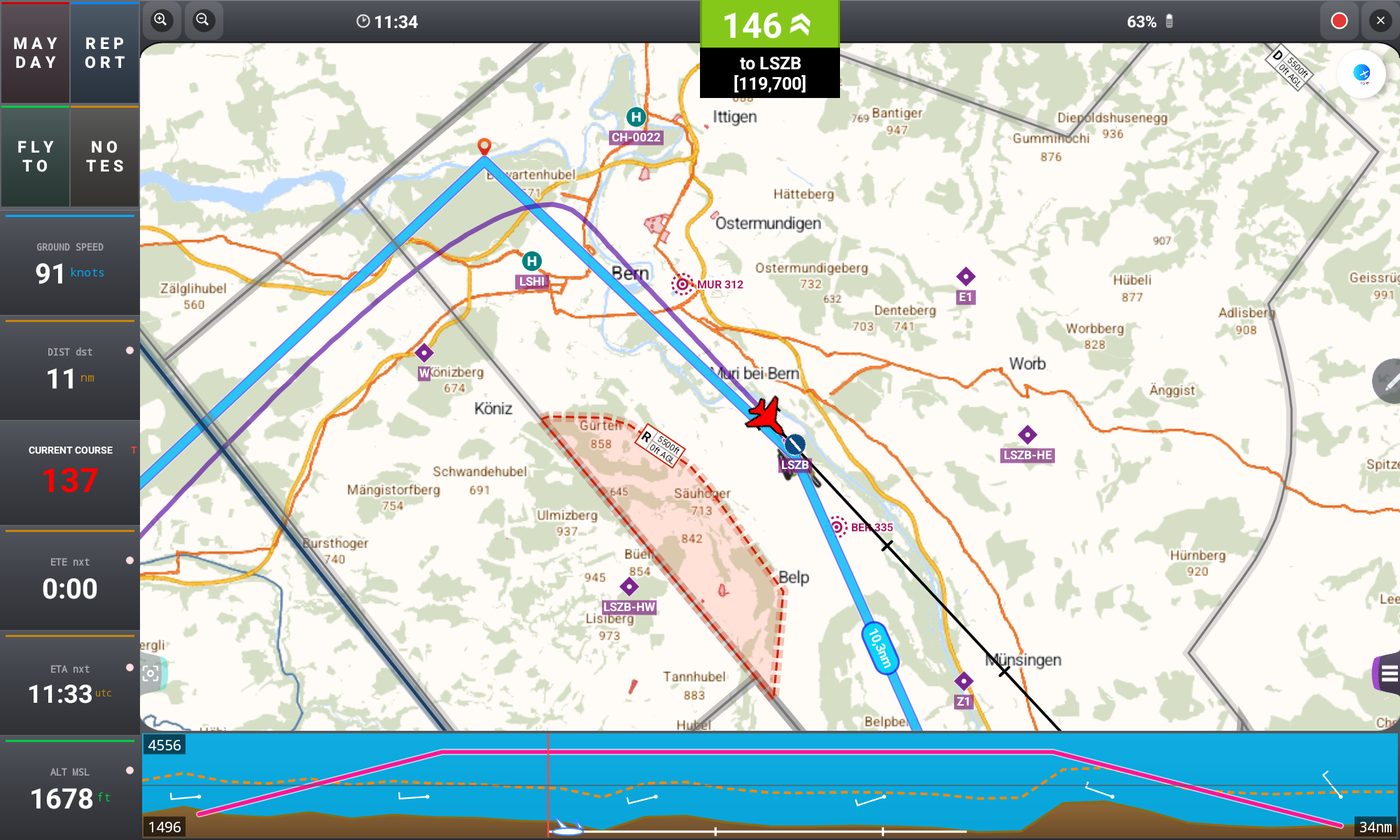
In landscape the tablet layout groups the four main buttons in the top-left corner, with the data fields below them.
On the Map
5. Map Objects
A few symbols appear consistently over the map:
 | Plane — your current position; moves in real time while GPS is available. Color and shape can be changed in Settings. |
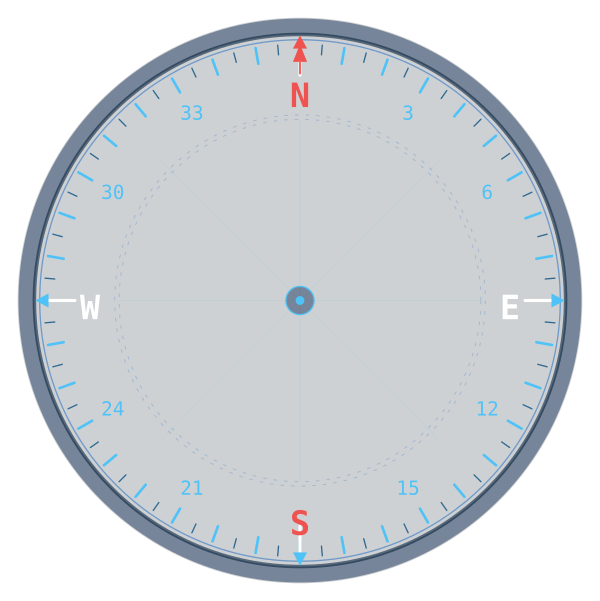 | Compass — rotating compass ring around the plane; can be toggled in Settings or the Layers panel. |
 | Aerodrome (blue) — from the built-in database. The bar inside the symbol follows the runway direction; zoom in to see the runways drawn on the map with their numbers. |
 | Aerodrome without runway data — shown as a disc with a +. |
 | User Airfield (red-orange, with a U) — an airfield created or edited by you, with its runway. |
 | User Airfield without runway — same, as a disc with a + and a U. |
 | Heliport (teal H) — hidden by default; switch it on in the Layers panel. |
 | User Reference Point (red-orange diamond with a U) — a point of your own, used for navigation or reporting. |
 | VFR Reporting Point (purple diamond) — optional reporting point. |
 | Compulsory VFR Reporting Point (red diamond) — pass over it when entering the area. |
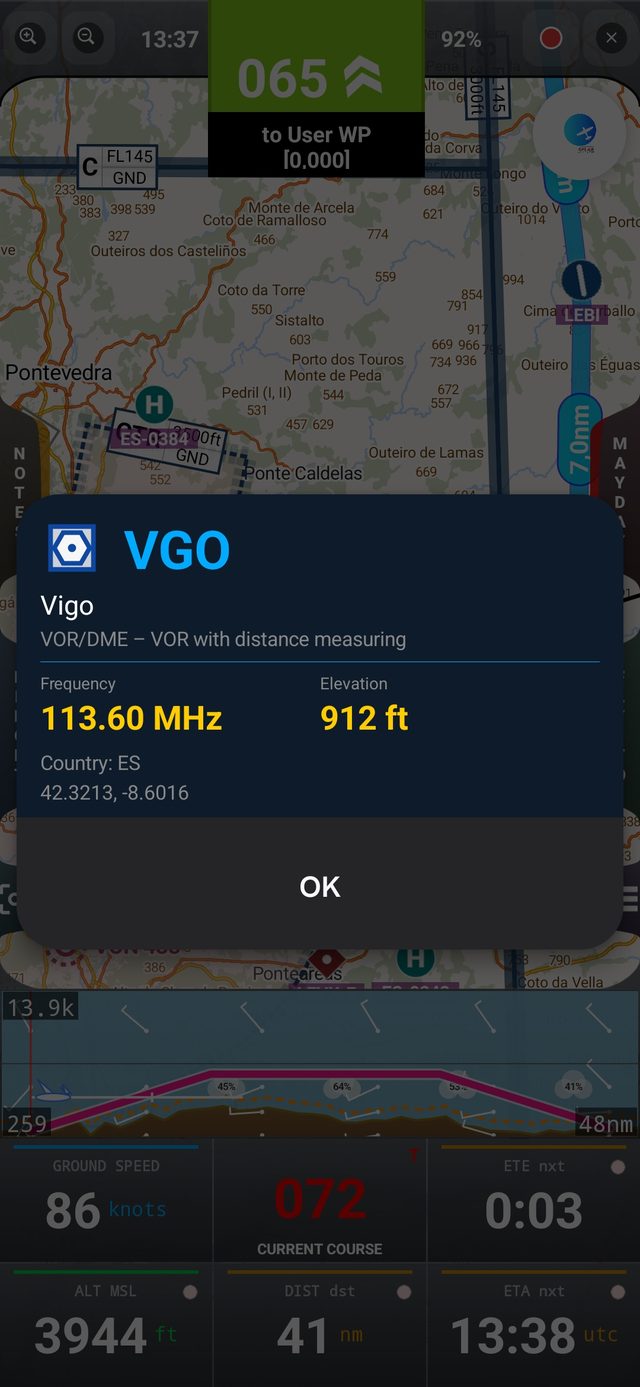
 | VOR (blue hexagon) — VHF omnidirectional radio range. |
 | VOR/DME (hexagon in a square) — VOR with distance measuring (also used for VORTAC). |
 | DME / TACAN (blue square) — distance measuring equipment. |
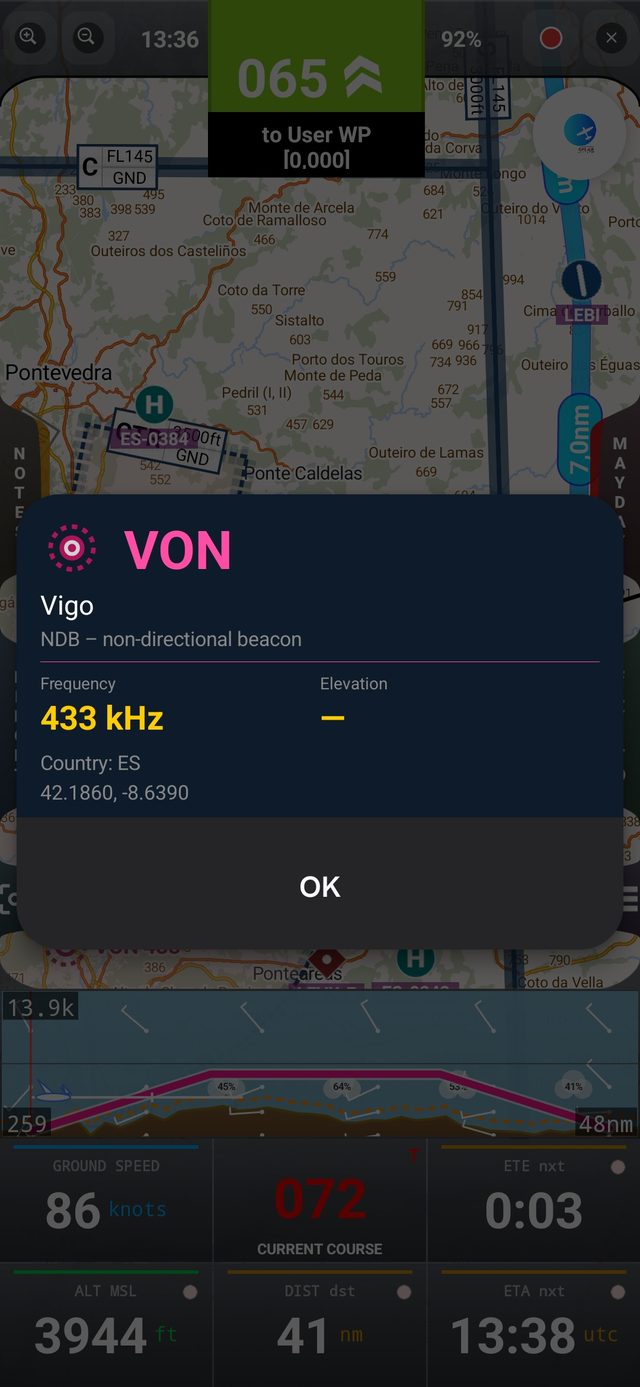
 | NDB (magenta, dashed ring) — non-directional beacon. |
 | Route Point (red marker) — a point of your route that is not attached to any aerodrome. |
Tapping any waypoint opens its info card with Direct To, + Route, Edit/Suggest and, for user waypoints, Delete.
Aerodromes, heliports and VFR reporting points open the waypoint info card; navaids open a small dialog with identifier, name, type, frequency (MHz for VOR/DME, kHz for NDB) and elevation. Each group of symbols can be switched on or off in the Layers panel.
Flight Data at a Glance
6. Flight Data & Buttons
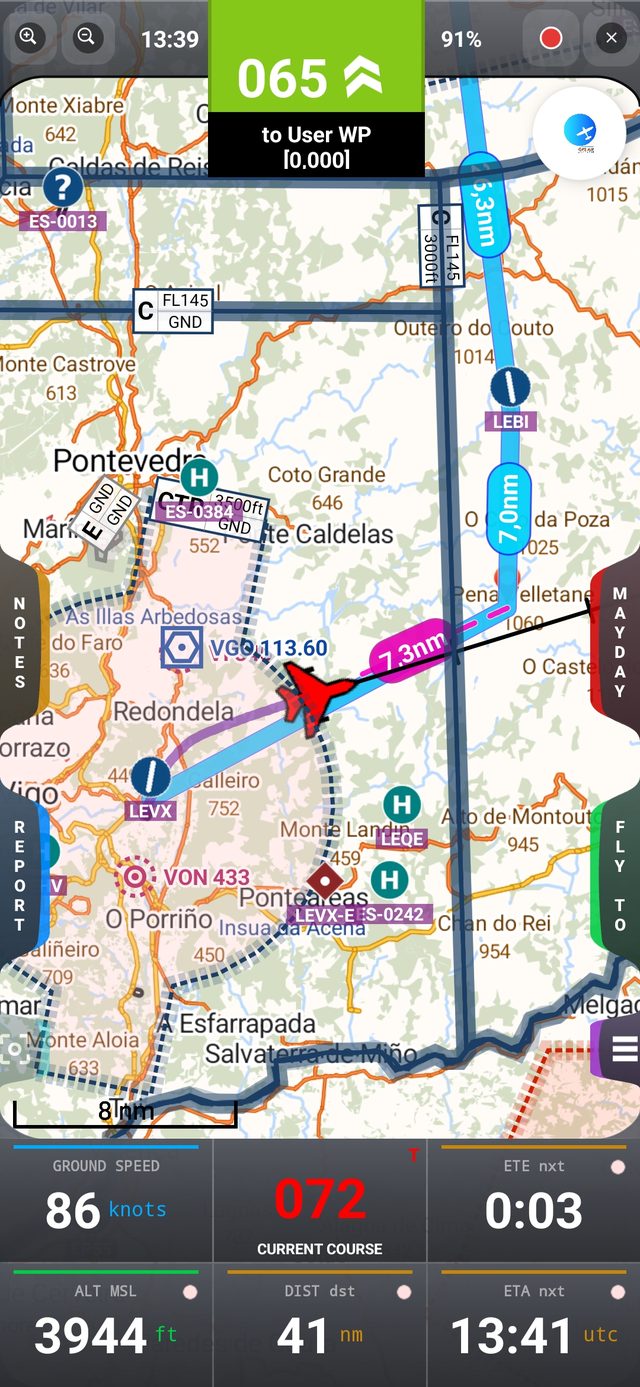
The data panel (bottom of screen in portrait, left side in landscape) shows the six most important numbers for your flight:
- GROUND SPEED — current speed over the ground
- CURRENT COURSE — the track you are actually flying
- DIST — distance to the next waypoint and to the destination
- ETE / ETA — tap to switch between Estimated Time Enroute and Estimated Time of Arrival (UTC)
- ALT MSL — GPS altitude; tap to switch between MSL and QFE
The six main buttons
 CENTER
 LAYERS
- MAYDAY — triggers the flight emergency procedure
- REPORT — opens the Position Report window
- FLY TO — sets a new destination
- NOTES — quick handwritten notes (QNH, frequencies, wind…)
- CENTER — toggles whether the plane stays centered on the map (On) or the map stays fixed while the plane moves across it (Off)
- LAYERS — opens the Layers panel to toggle Track, Compass, Airspace, Terrain Profile and Route Weather (see Map Layers)
Top-bar icons
Tap the round icon on the top-right corner to reveal the labels: Next WP, North UP, Airspace, Map, Logbook, Settings and Info — each opens the matching screen described further below.
Terrain / GRAMET summary strip

A summarized terrain and weather profile is always shown at the bottom of the map, along the current route, so you can compare your planned altitude with the terrain and wind ahead at a glance. Tap this strip to open the full, detailed GRAMET view — see GRAMET Weather Profile.
Drag the circles to edit the flight profile
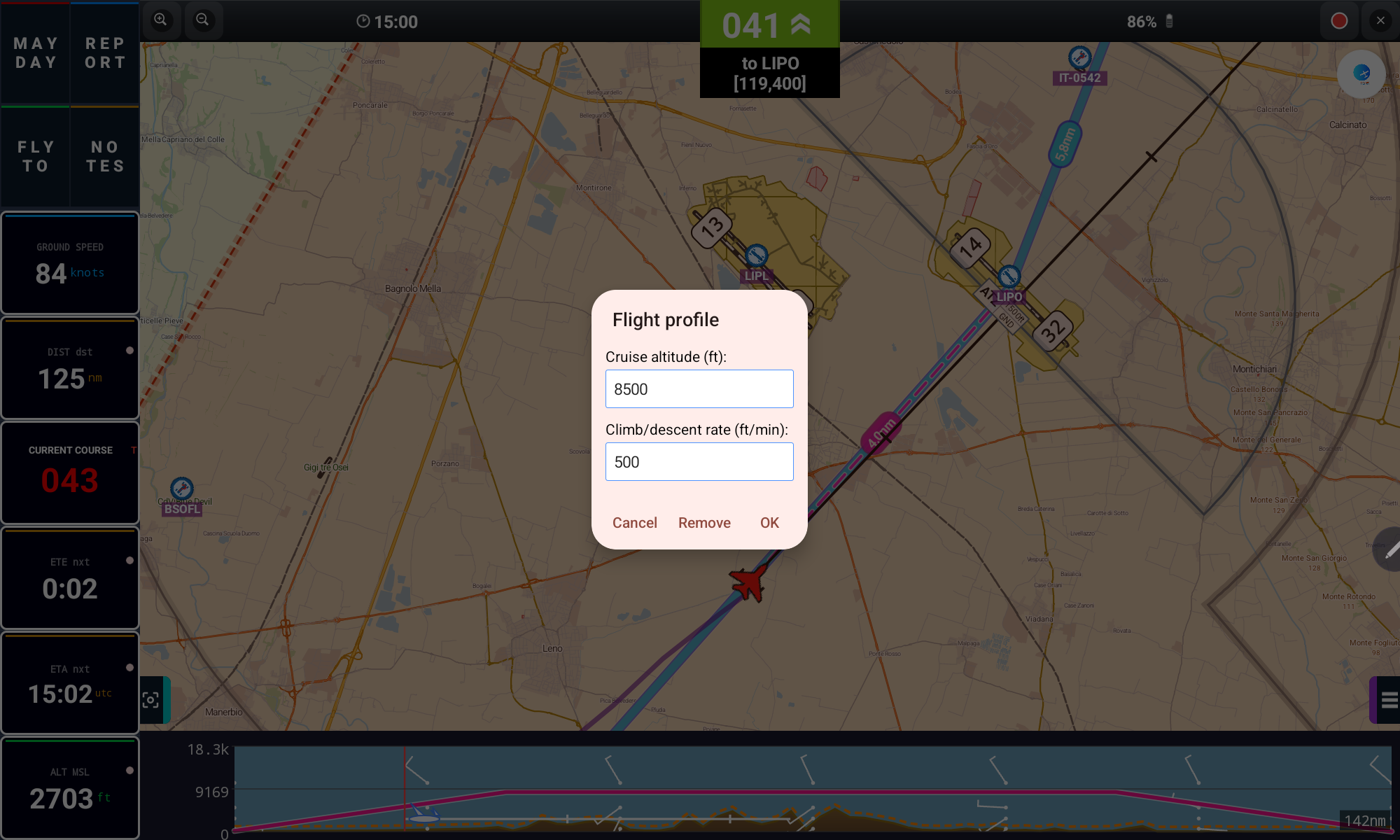
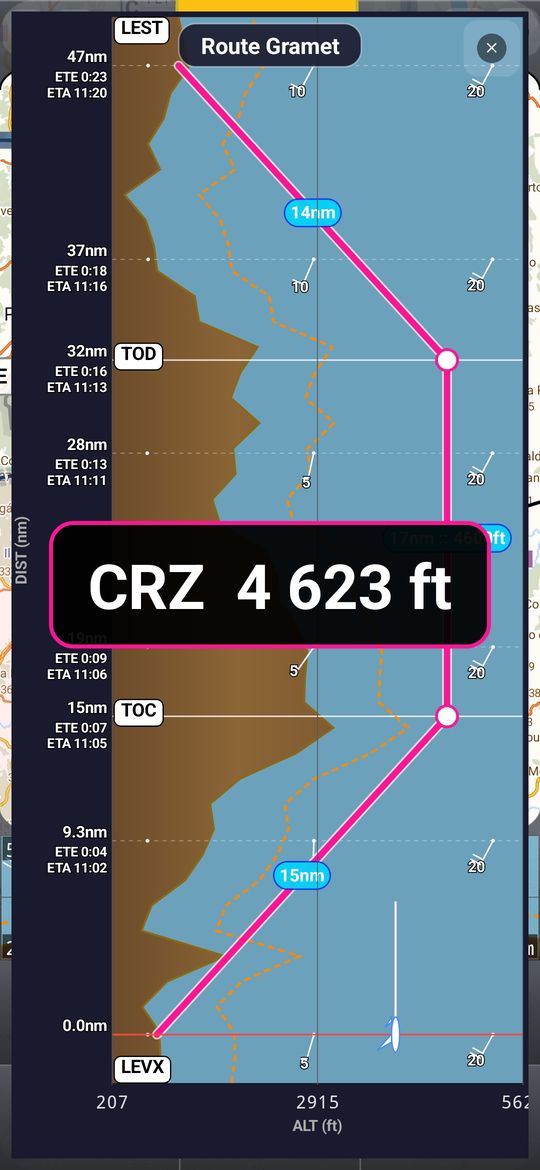
The pink line is the planned flight profile, with a white circle at the top of climb (TOC) and another at the top of descent (TOD). Drag the TOC circle left or right to change the climb rate, the TOD circle to change the descent rate, and press and drag the line between them up or down to change the cruise altitude. While you drag, a large readout shows the value (CRZ, TOC ▲, TOD ▼), and the change is saved with the route. Short routes with no cruise phase show a single circle.
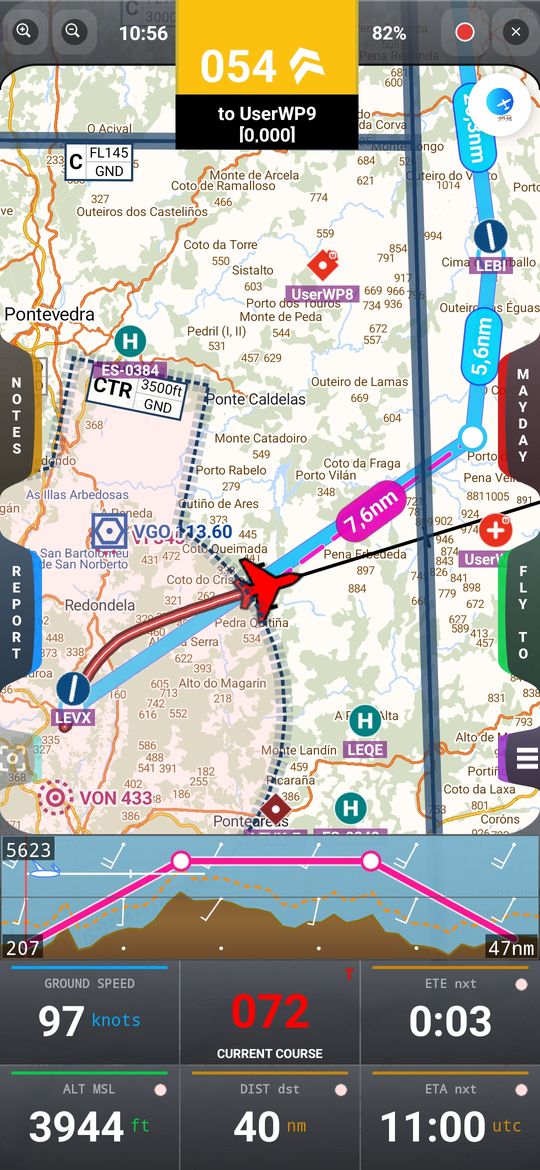
A single tap on the strip still opens the full GRAMET, and a long-press opens the Flight Profile dialog. With Route Weather on, the vertical scale no longer jumps to very high flight levels, so the terrain stays readable.
Analog instruments (Sacred Six)
A panel with the six classic flight instruments, drawn on screen and fed by the GPS and by your device's sensors: airspeed (ground speed, GS), attitude indicator, altimeter, turn coordinator, heading indicator (track, with a magenta bug pointing to the next waypoint) and vertical speed. Two stopwatches complete the panel.
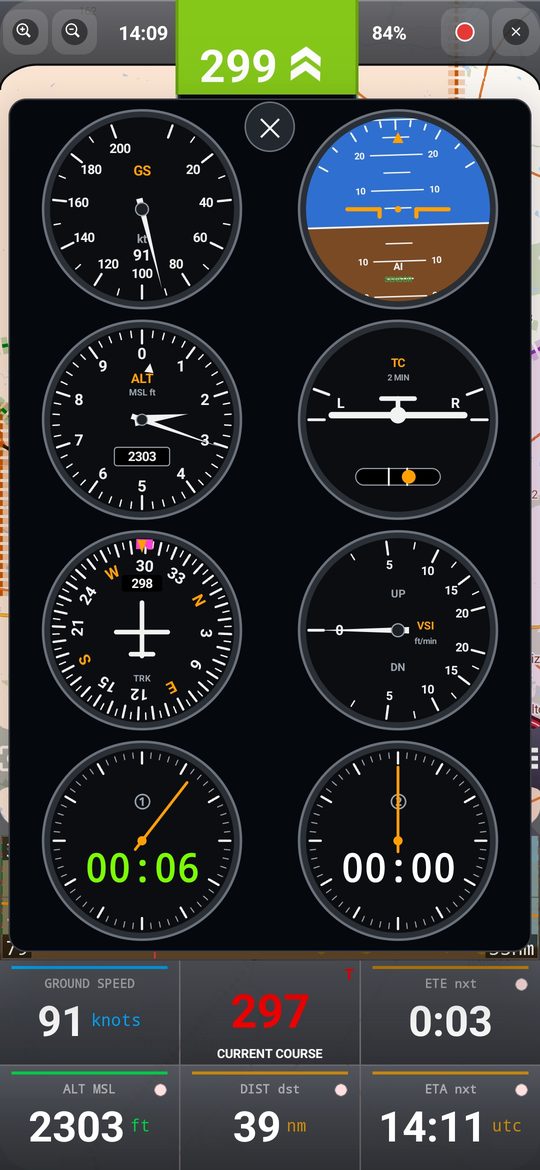
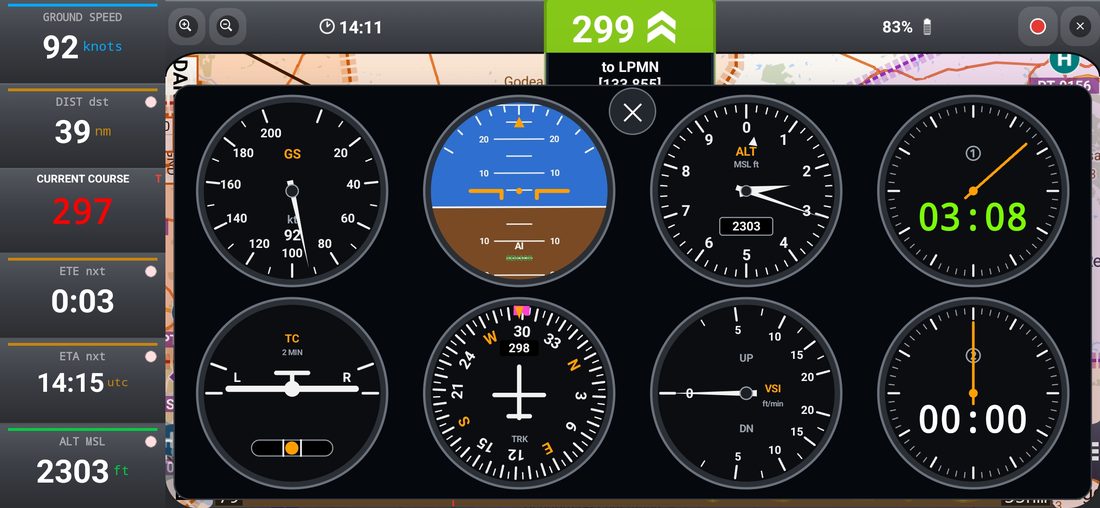
- Open it with the round dial button at the edge of the map (it turns into a red ✕ while the panel is open). On large tablets the panel docks beside the map (landscape) or at the bottom of the screen (portrait); on phones it floats over the map.
- The altimeter follows the Altitude panel (MSL or QFE) and your units; speed and vertical speed use the units chosen in Settings.
- The attitude indicator uses the device's motion sensors. Tap it to calibrate with the aircraft level (the device can be flat, upright or tilted in a holder); long-press to reset. Without sensors it is estimated from the GPS and labelled GPS.
- Stopwatches: tap to start / stop, long-press to reset. They keep running with the panel closed and between sessions. Without the panel open, tap the clock on the top bar to show the two stopwatches floating over the map.
Flight profile on short routes
On short routes the TOC and TOD circles are now always visible and the cruise line can always be dragged (the cruise stage is never shorter than 20 % of the route). If the requested altitude cannot be reached with your climb and descent rates, the profile is drawn at the highest reachable altitude — and that is the value saved when you edit it.
Where To
7. Waypoints & Fly To
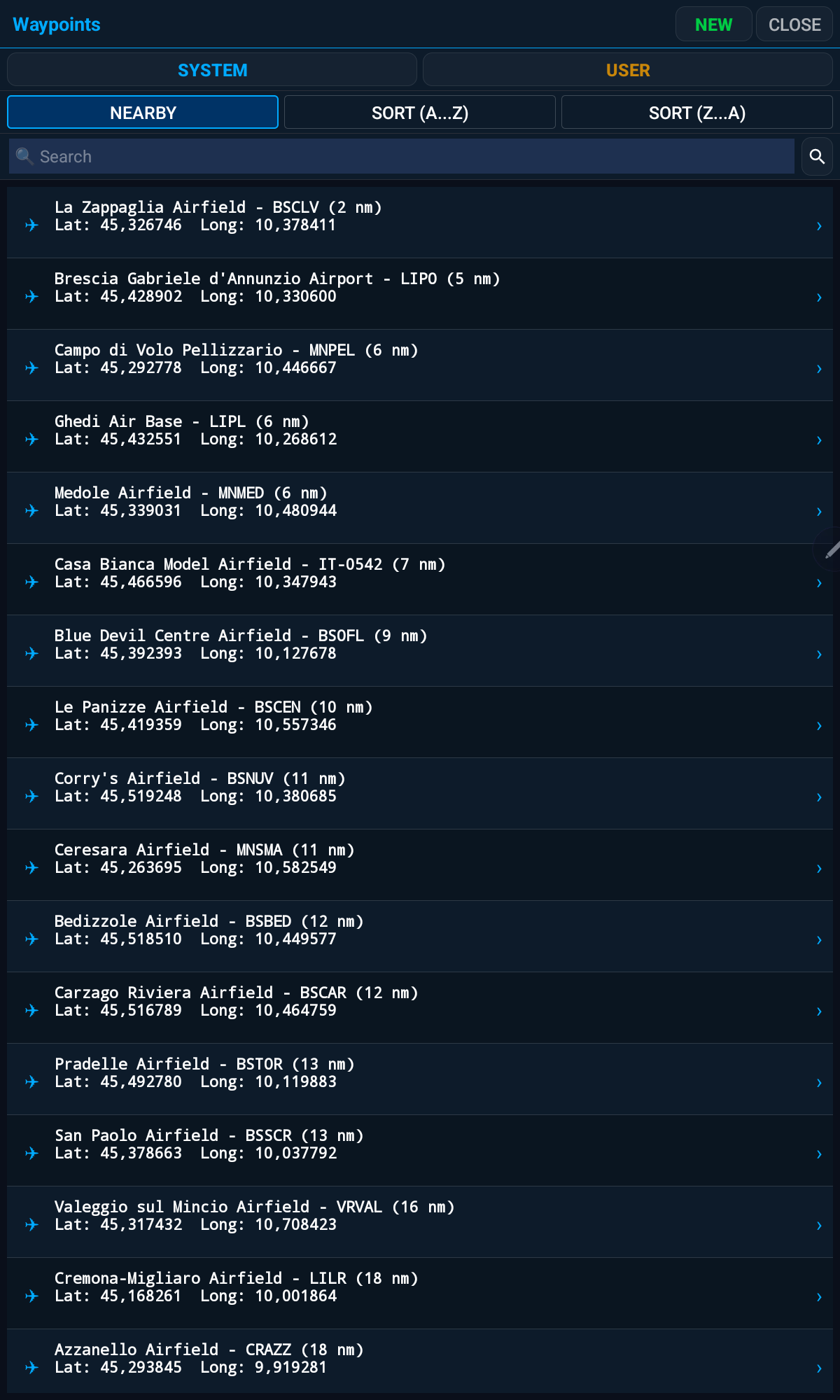
There are two ways to reach a waypoint: tap it directly on the map, or search for it with FLY TO → Waypoints. Either way opens the same waypoint info card.
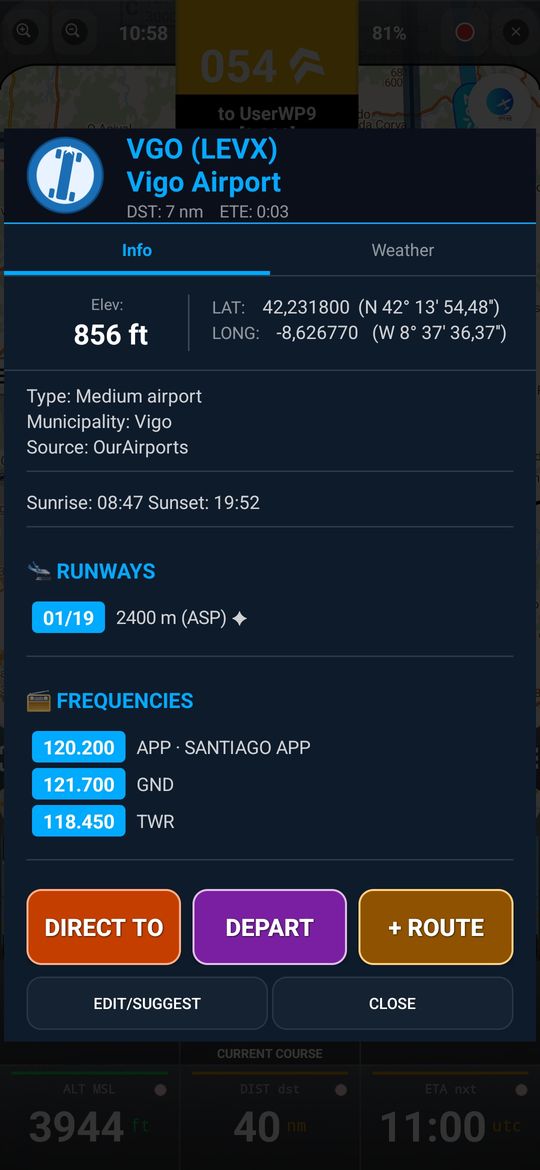
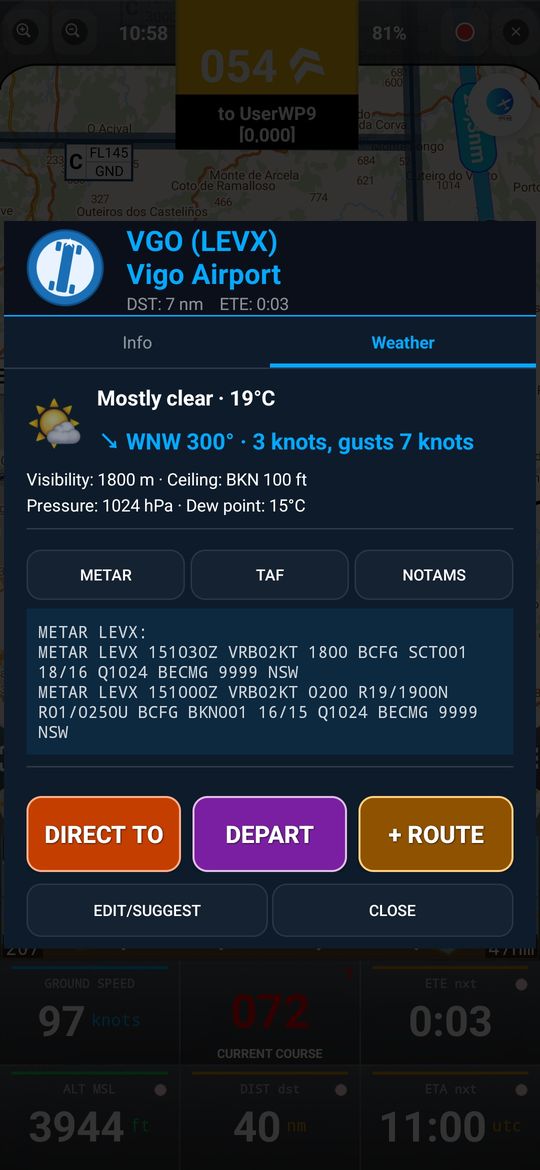
- From the waypoint info card, tap DIRECT TO to start a new route straight to it, or + ROUTE to add it as the next leg of the current route
- Tap DEPART to start a new route with that waypoint as the starting point, without including your current position (unlike DIRECT TO) — also available in the waypoints list, the route legs list, and the Fly To by coordinates and by bearing/distance dialogs
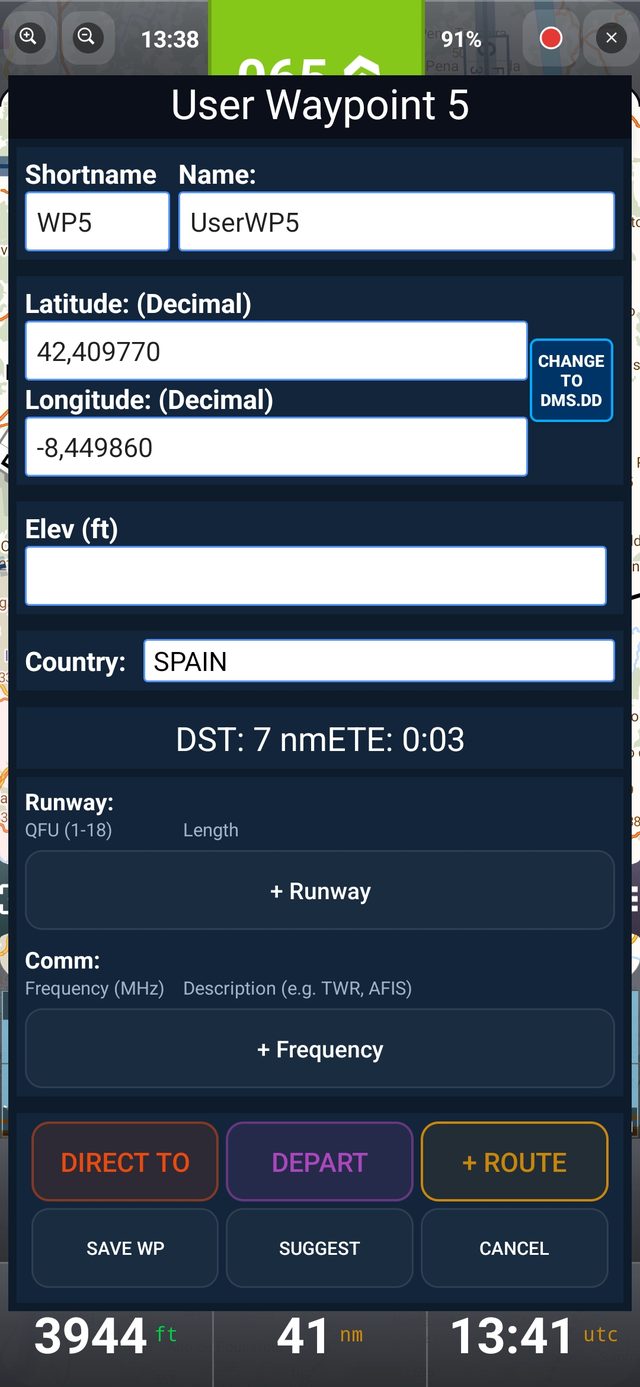
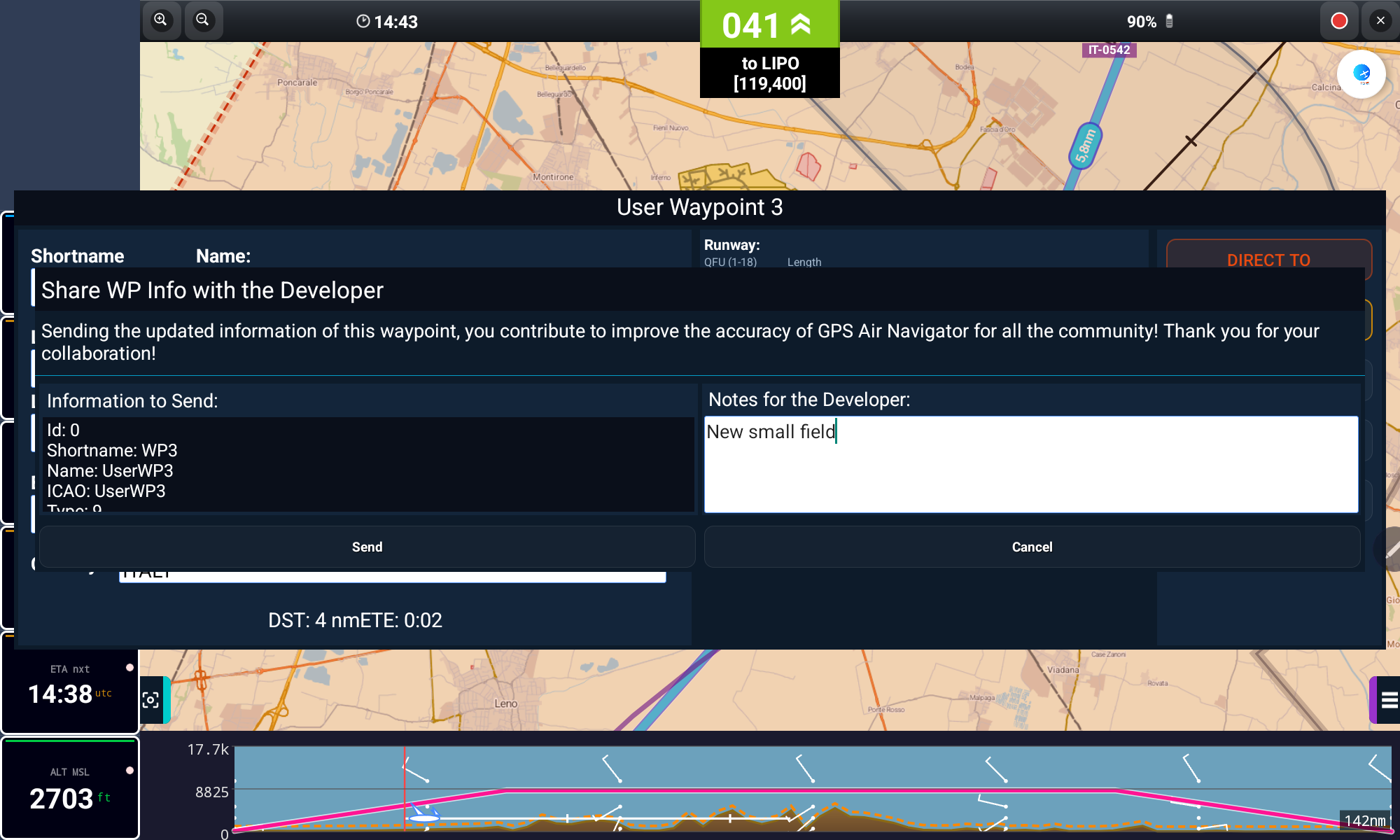
- Tap EDIT/SUGGEST to correct the waypoint's data
- Editing a System Waypoint turns it into a User Waypoint (the original stays available)
Long-pressing a row in the waypoints list (FLY TO → Waypoints) opens a quick menu with the same actions — Show Info, Direct To, Depart, + Route and Copy to Fly To Bearing — without opening the full card.
Long-pressing an empty spot on the map automatically opens the New User Waypoint window. If you don't actually want to save it as a User Waypoint and only need it as a route point, just tap DIRECT TO or + ROUTE there, without saving.
Aerodromes, heliports and VFR reporting points
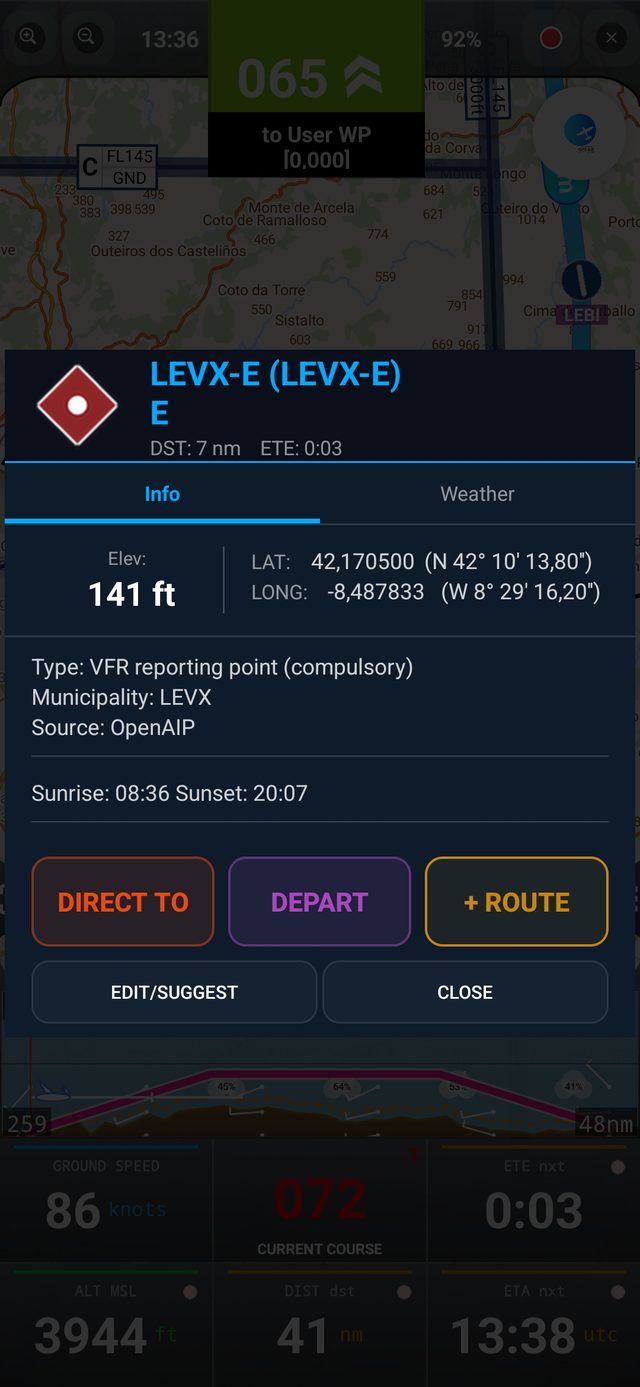
The info card adapts to the type of place and shows its data source (OurAirports, OpenAIP or OpenFlightMaps), sunrise and sunset and, for aerodromes, runways (length and surface) and frequencies.
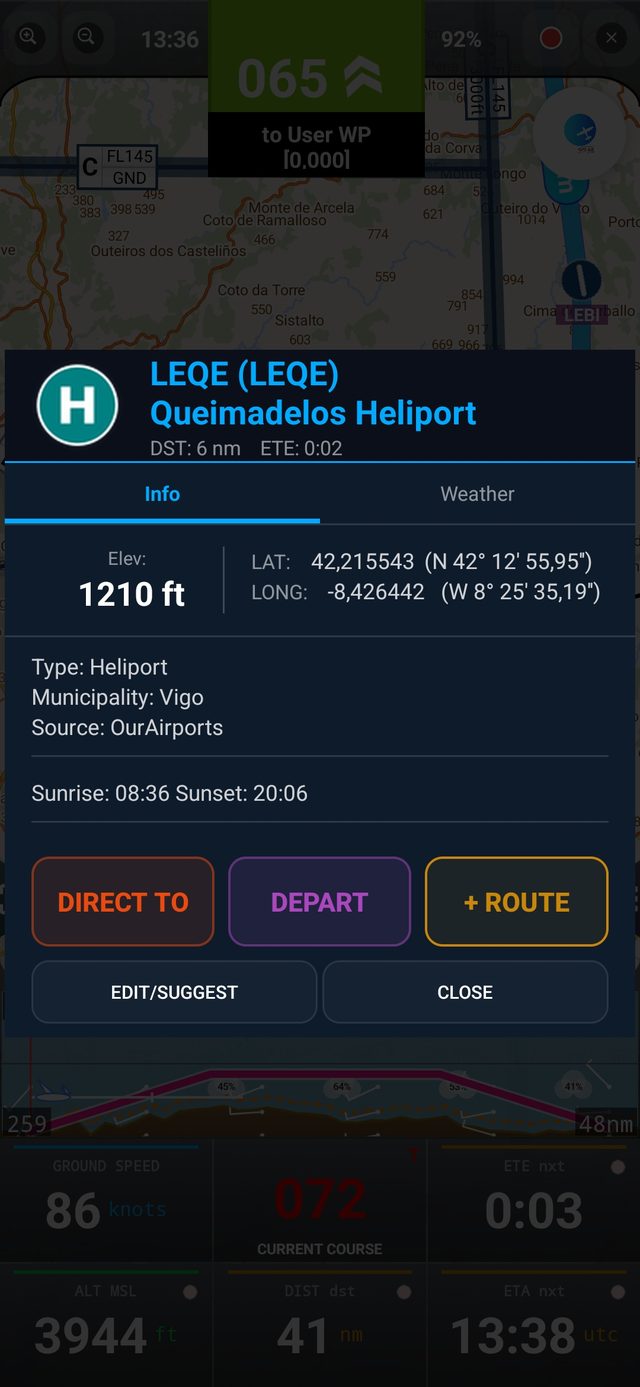
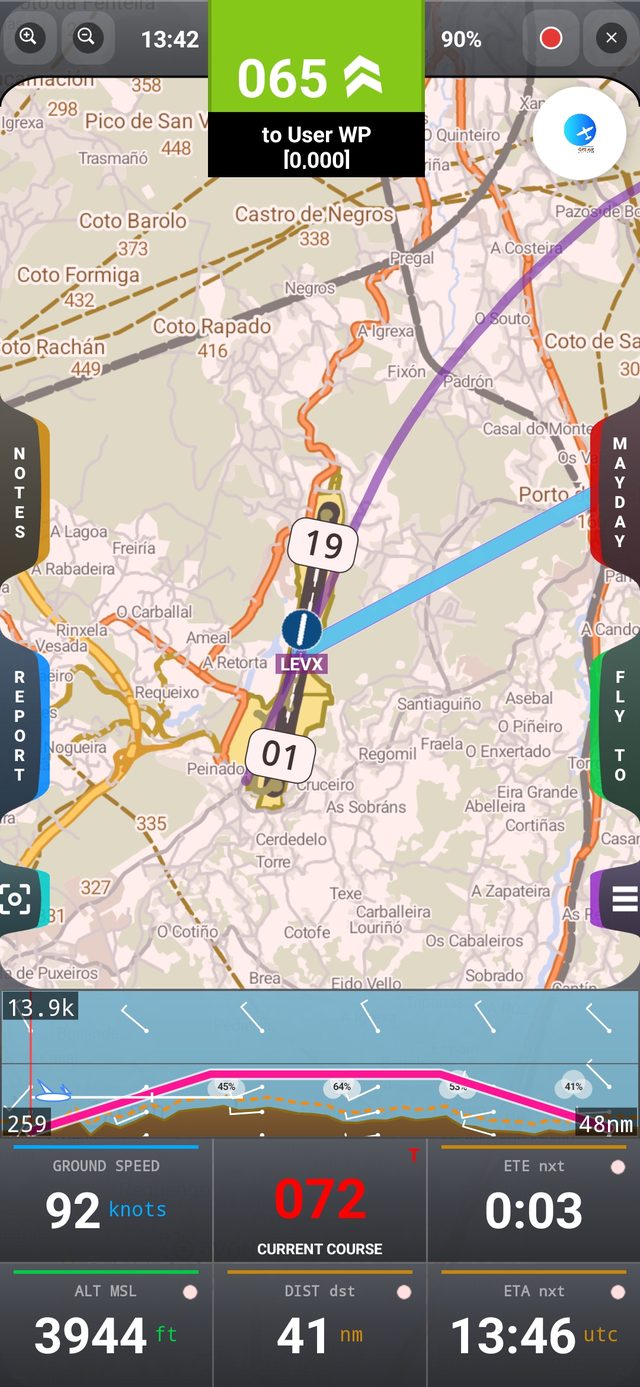
- Heliports are hidden by default — turn them on in Layers
- VFR reporting points are purple diamonds; compulsory ones are red, and the card says so under Type
- Every card offers DIRECT TO, DEPART and + ROUTE
Your own waypoints: Airfield or Reference point
User waypoints come in two types, chosen with the two buttons at the top of the waypoint edit window (a long-press on an empty area of the map opens it):
- Reference point (default for new waypoints) — a place you use for navigation or reporting: a village, a dam, a landmark. It has no runways or frequencies, and is drawn on the map as a red-orange diamond with a U.
- Airfield — your own airfield or landing strip, with its runways (QFU and length) and radio frequencies. It is drawn as a red-orange runway symbol (a disc with + and U if no runway is defined).
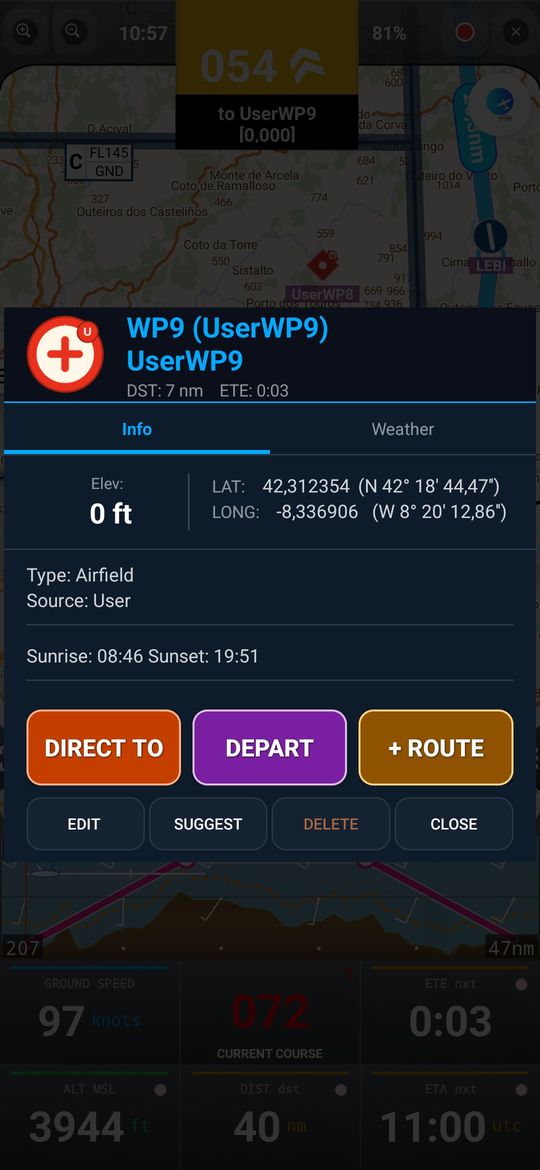
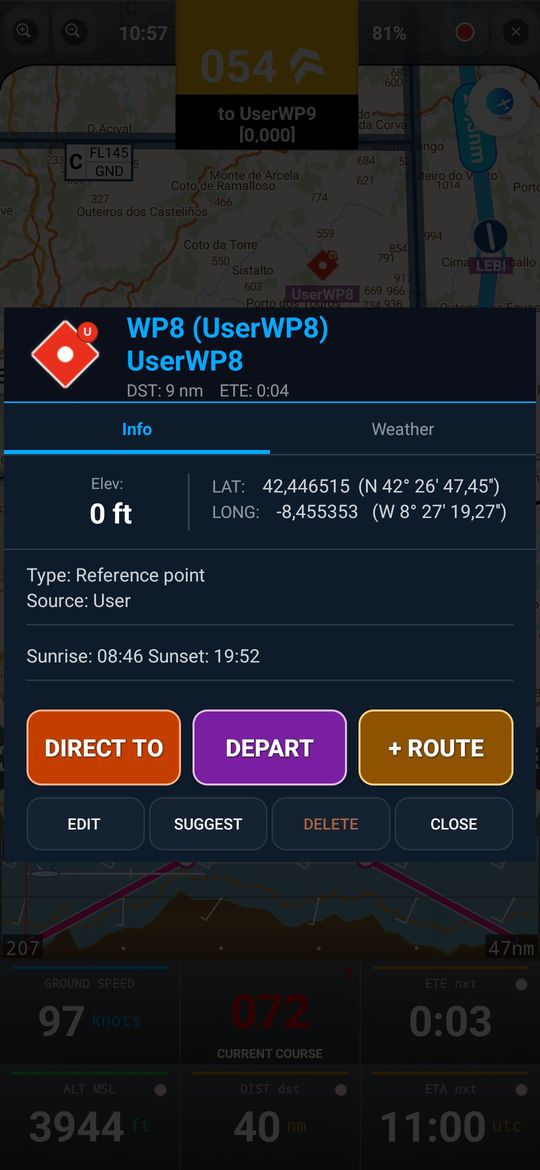
The info card shows Type: Airfield or Reference point and Source: User. Waypoints created in earlier versions without runways were converted to reference points automatically; the type is also kept when you export and import waypoints.
Fly To menu
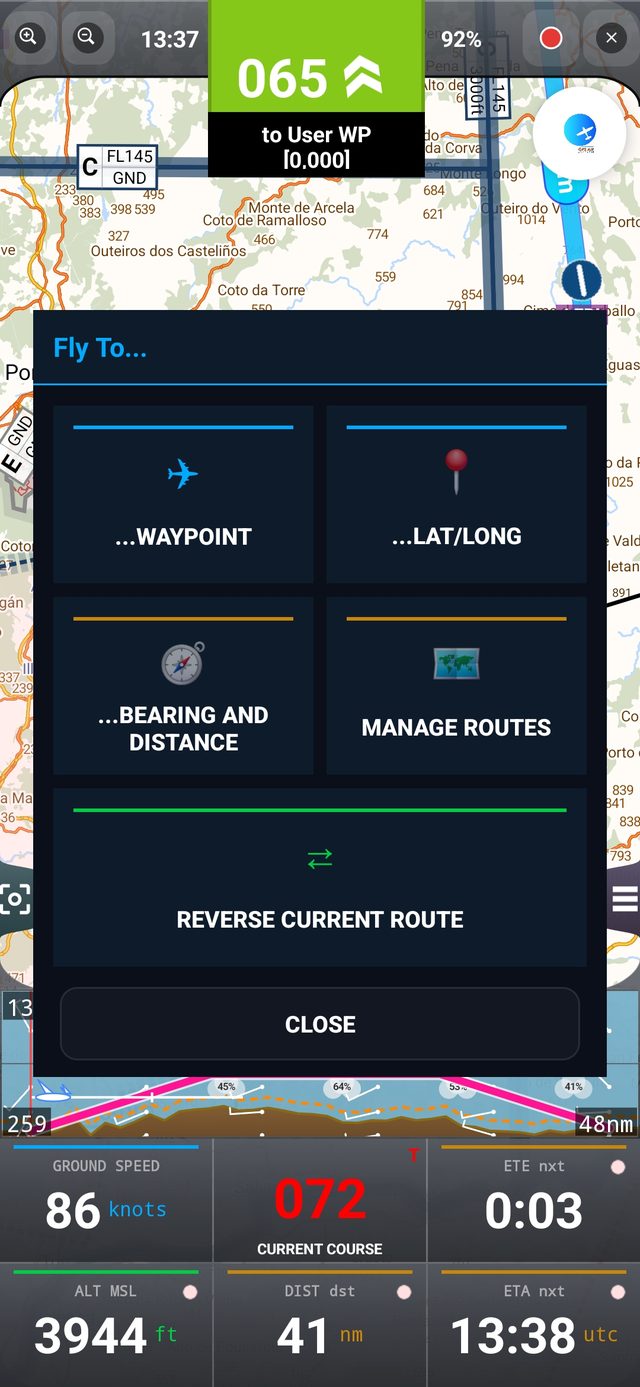
FLY TO opens a menu with …Waypoint, …Lat/Long, …Bearing and Distance, Manage Routes and Reverse Current Route.
Docs: VAC charts, photos, files and notes
The waypoint card has a third tab, Docs (next to Info and Weather), where you keep everything about that aerodrome or point:
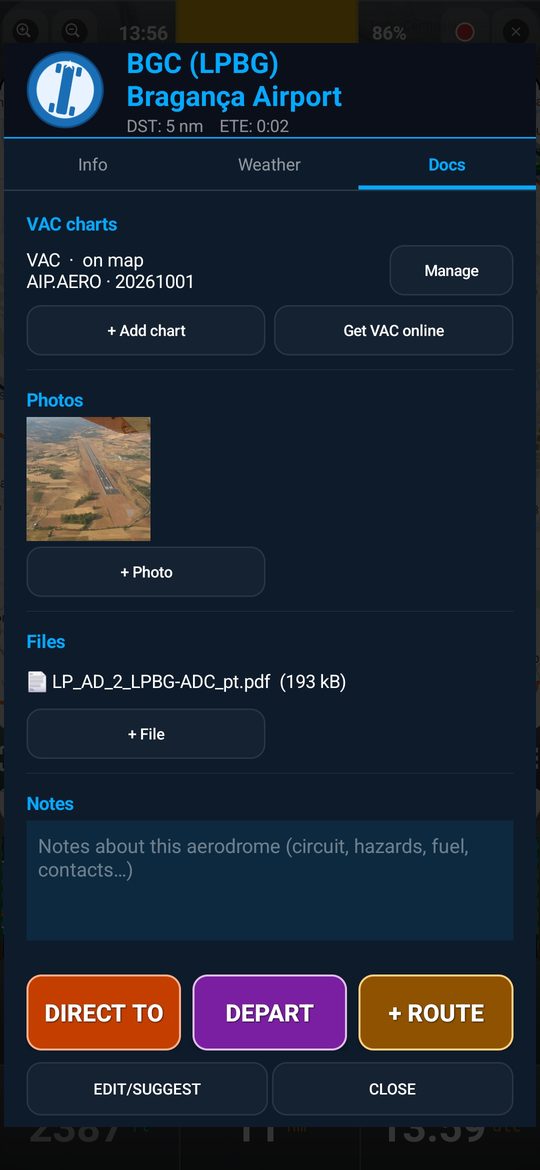
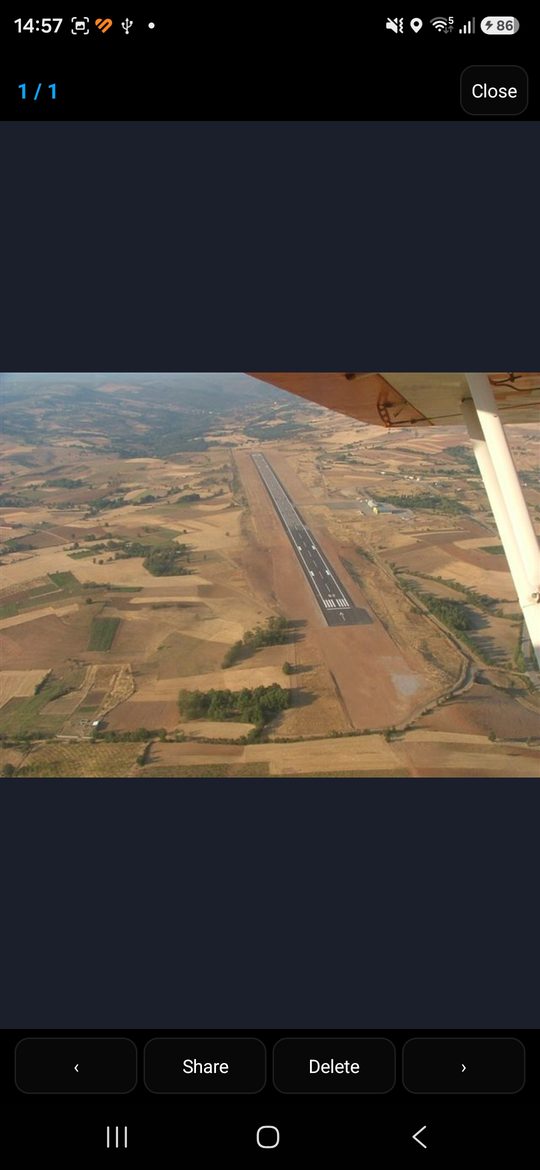
- VAC charts — add as many as you need per aerodrome (+ Add chart). Get VAC online opens the official publication of the country; download the PDF there and import it with Import PDF / image. The app does not bundle charts, because most national AIPs do not allow redistribution.
- Photos — from the camera or gallery, with zoom, share and delete. Files — any file type (up to 100 MB). Notes — free text, saved automatically.
Align a chart on the map
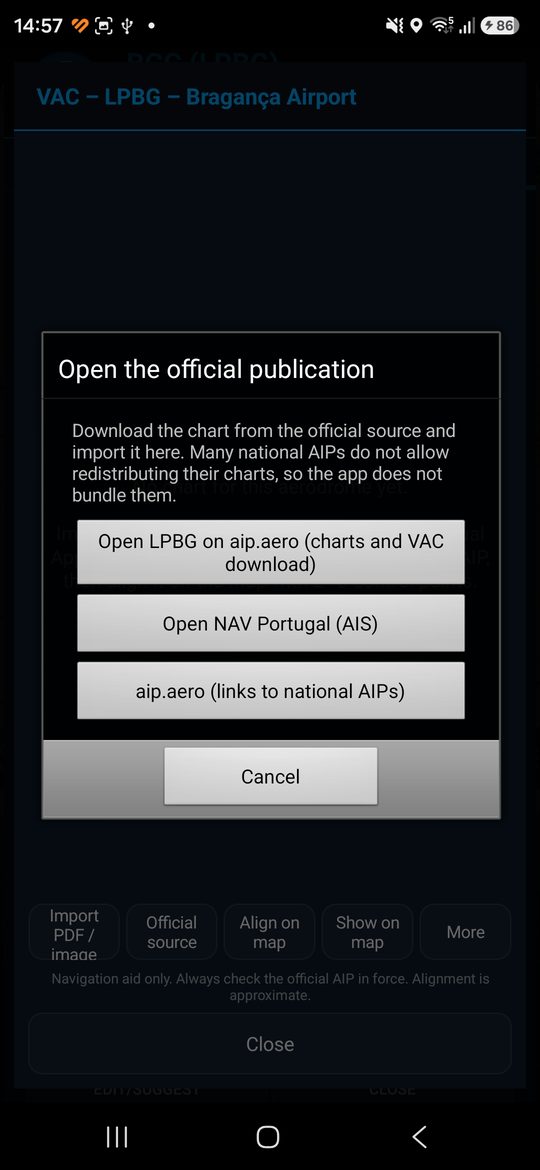
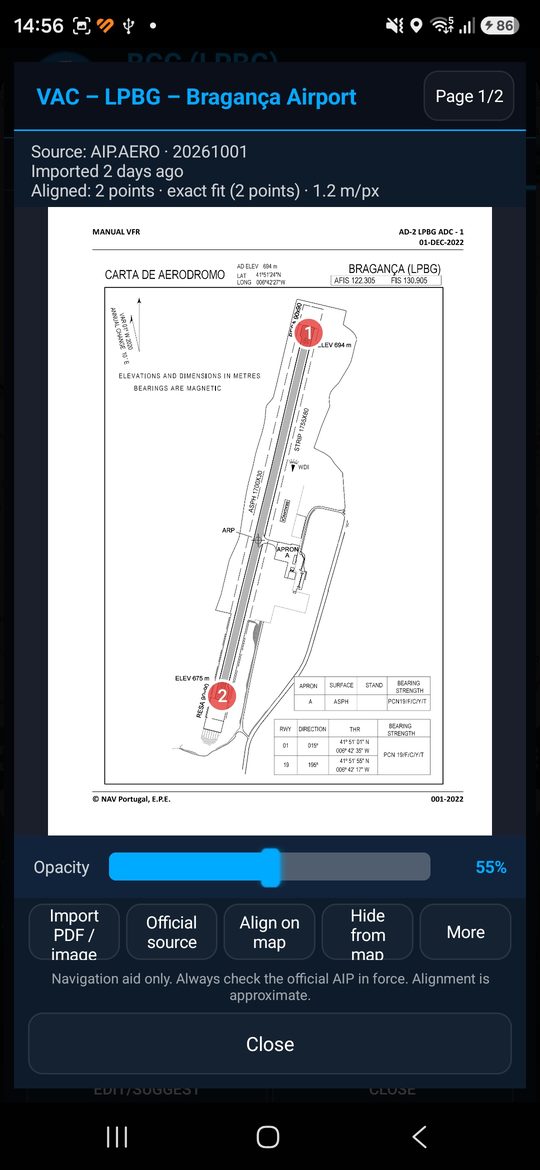
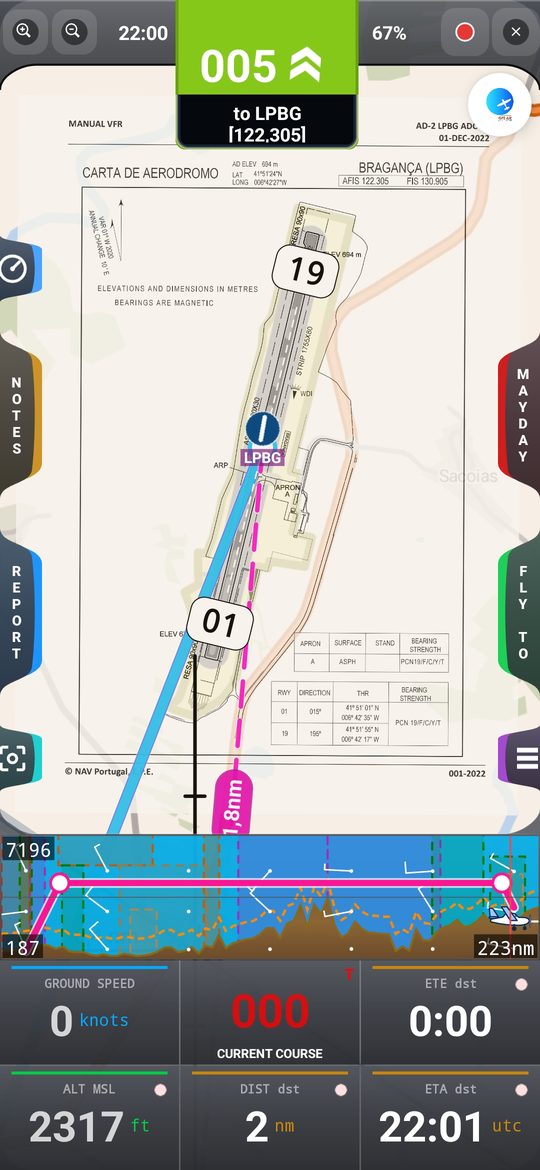
- Tap Manage on a chart, then Import PDF / image; enter the source and the edition (AIRAC) date. The viewer always shows the source and how old the chart is.
- Tap Align on map: touch a recognisable point on the chart (a runway threshold, the aerodrome reference point…) and say which point it is — or type its coordinates. Two points give an exact fit; three or more give a best fit with the mean error shown (amber above 60 m).
- Tap Show on map: the chart is drawn under the other layers with adjustable opacity, and your aircraft moves over it. The VAC layer can be switched off in More.
- Charts can be exported and imported as a package (More) — share them only if the source licence allows it.
Plan Ahead
8. Routes & Flight Profile
Build a route with as many legs as you need, and let the app calculate ETE, distance and a full flight profile.
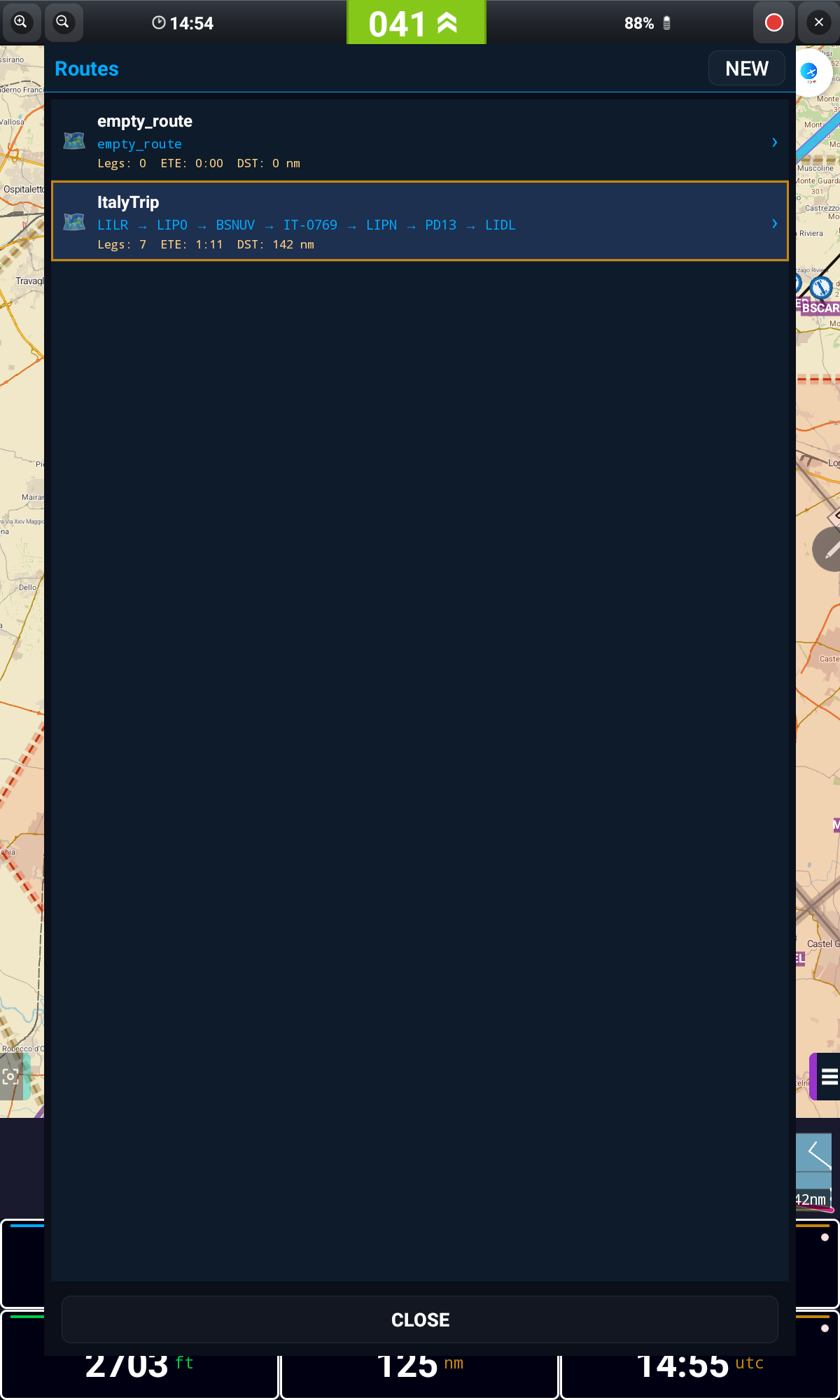
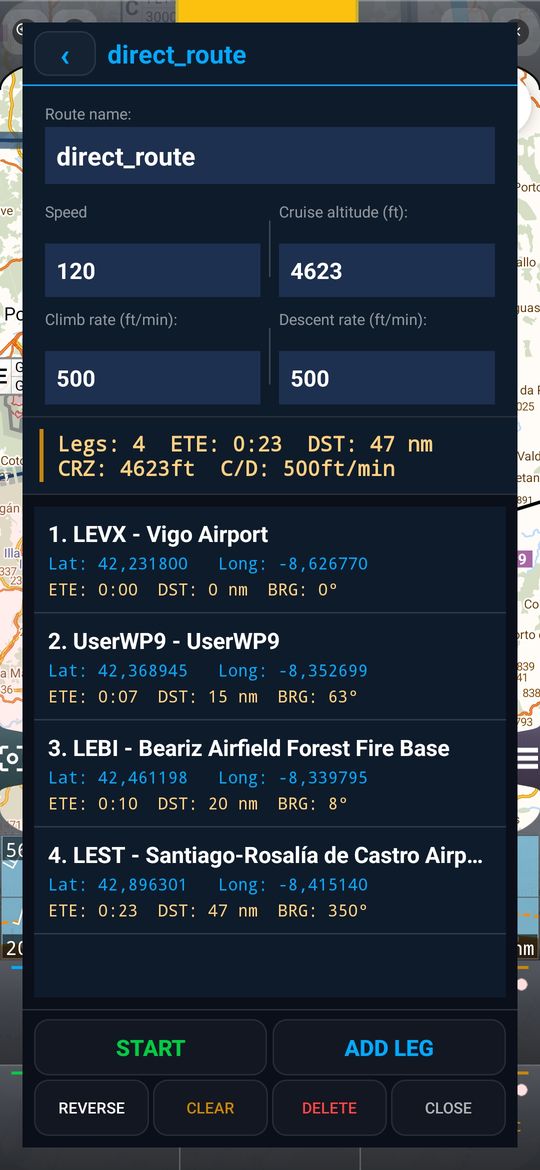
- Open FLY TO → Manage Routes and tap NEW, or add legs directly from any waypoint with + ROUTE
- Long-press a leg for Show Info, Direct To, Depart, Move Up, Move Down or Delete Leg
- Use REVERSE to fly the route backwards, or CLEAR to empty it
Define the route's speed, cruise altitude and climb/descent rate to get an accurate ETE and a realistic flight profile over the terrain.
Creating and moving route points directly on the map
- Long-press a segment of the route line (between two waypoints) and drag to create a new route point there — the route follows your finger in real time; lift to confirm
- These "loose" route points (with no aerodrome attached) are marked on the map with a red icon
- Long-press the red icon of an existing route point to drag it to another location, taking the route with it — drop it near a known waypoint/aerodrome to snap onto it automatically
Climb and descent rates
The route details now have separate fields for the climb rate and the descent rate (ft/min), next to the speed and cruise altitude; the C/D line in the summary shows both. The same values — cruise altitude, climb and descent — are in the Flight Profile dialog (long-press the terrain graph). By default both rates are the same.
Weather Ahead
9. GRAMET Weather Profile
GRAMET shows the forecast weather along your entire route as a vertical profile, aligned with the terrain and your planned altitude.
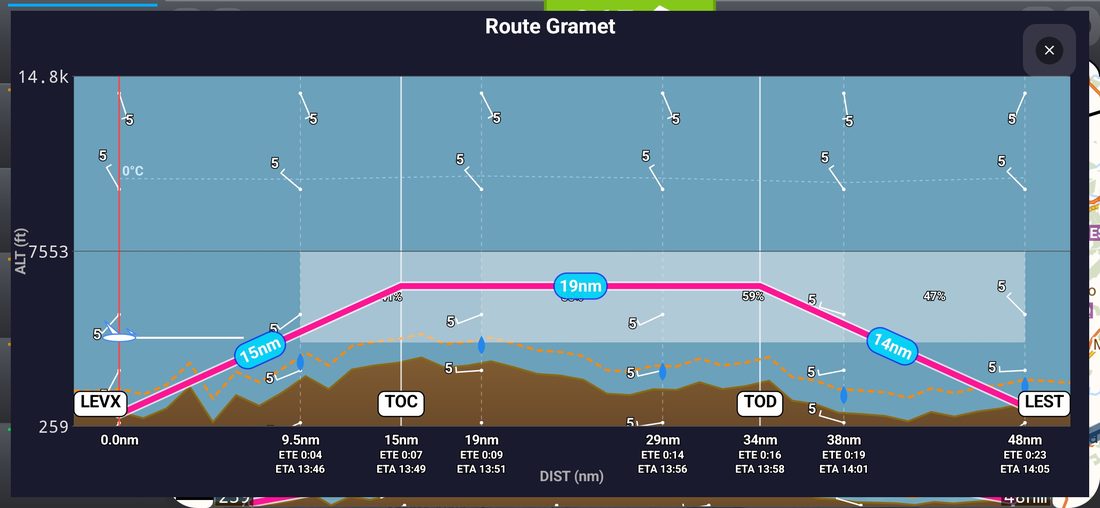
Tap the summarized terrain/weather strip at the bottom of the main screen (see Flight Data & Buttons) to open this detailed, full-screen GRAMET view. It is a great way to spot climbs, descents and possible weather hazards before departure.
Adjust the flight profile on the GRAMET
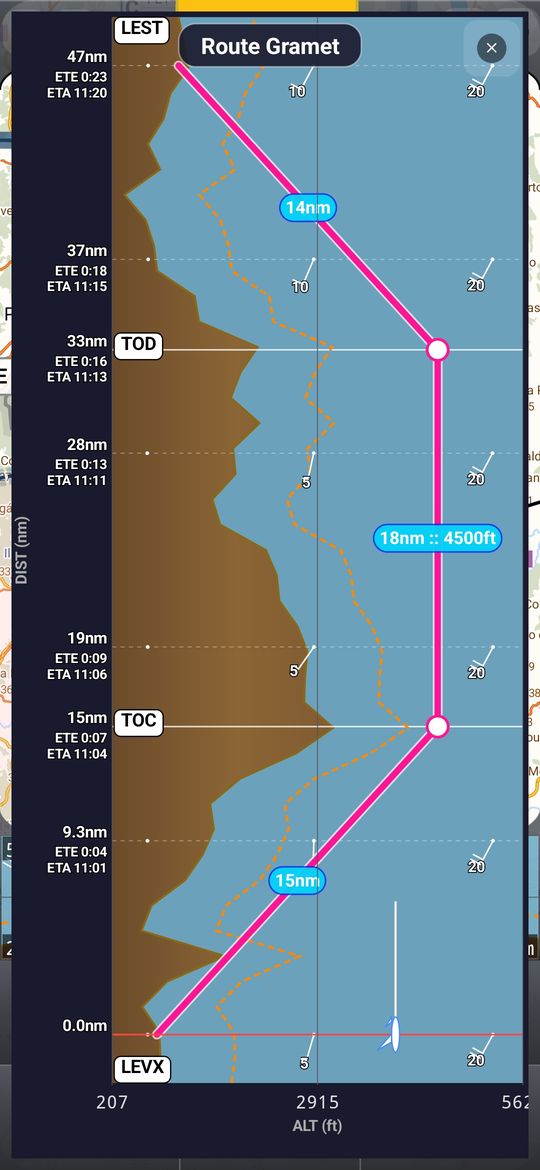
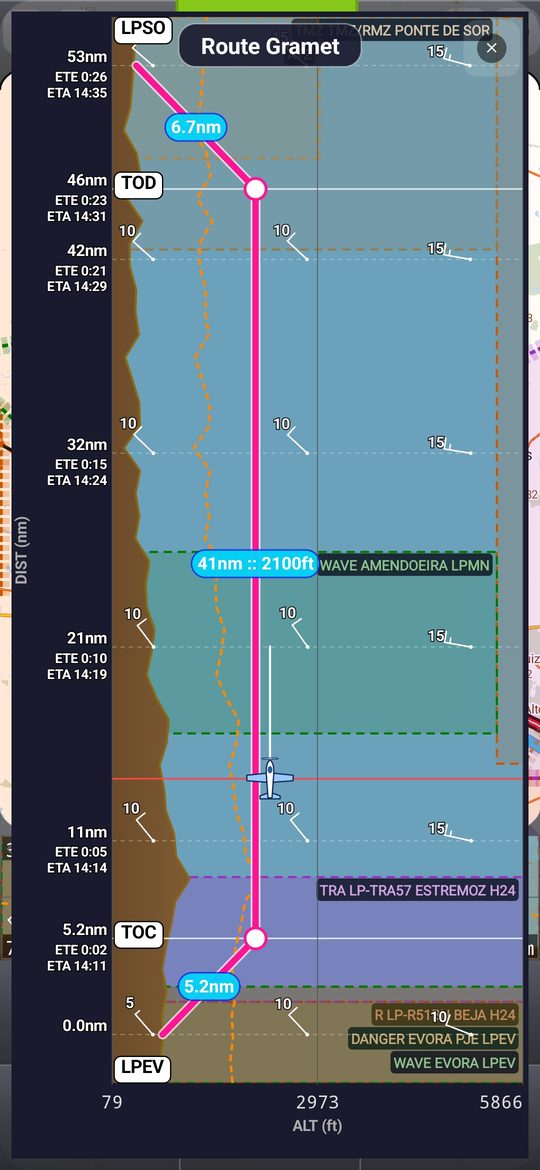
- The full-screen GRAMET has the same circles and cruise line — drag them just like on the small graph, with the same readout (the cruise line is labelled with the distance and the altitude, e.g. 18nm :: 4500ft)
- The graph now extends to the edges of the screen, with the title and the close button floating over it
- Press the sky area and move up (landscape) or to the right (portrait) to raise the ceiling of the chart; move down or left to lower it. A CEIL readout is shown while you drag
- By default the ceiling is now lower, so the terrain and the route use more of the chart
Stay Clear
10. Airspace
Airspace information is shown directly over the map once you have downloaded it for your country.
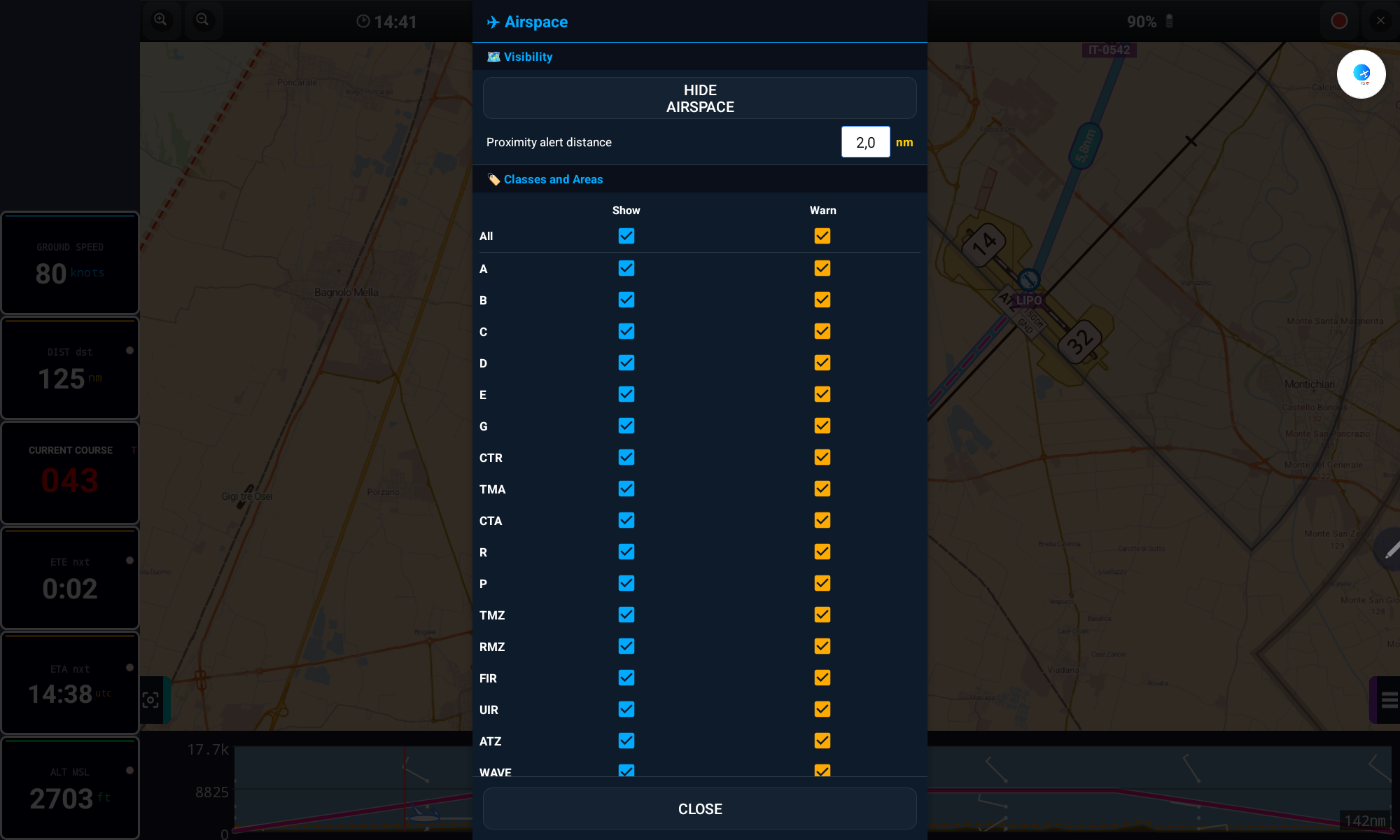
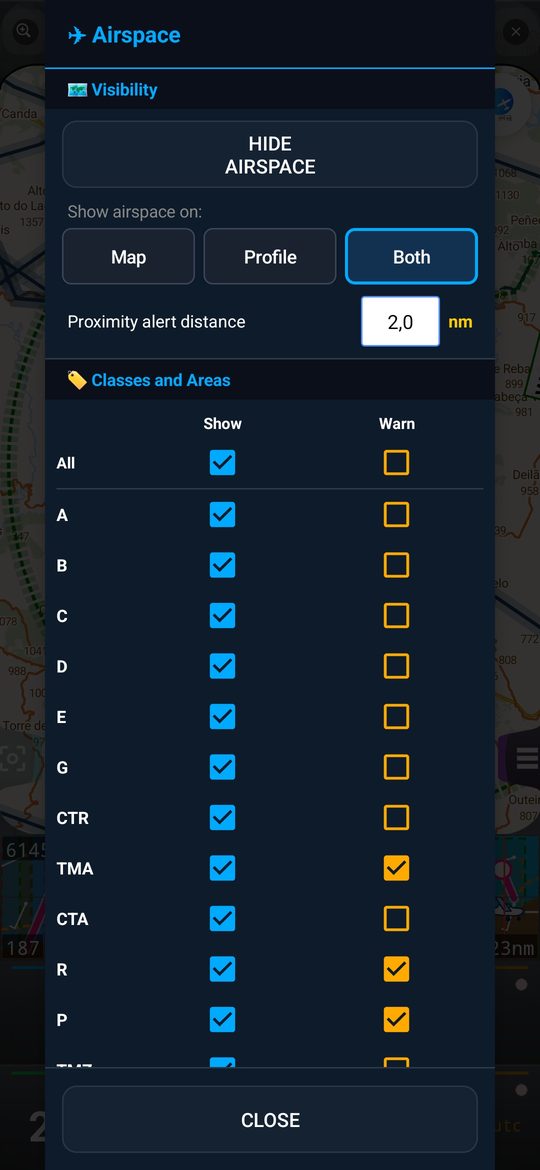
- Open the Airspace icon on the top bar
- Tick Show to display a class/area over the map, and Warn to be alerted when approaching it
- Set the Proximity alert distance (in nm) that triggers the warning
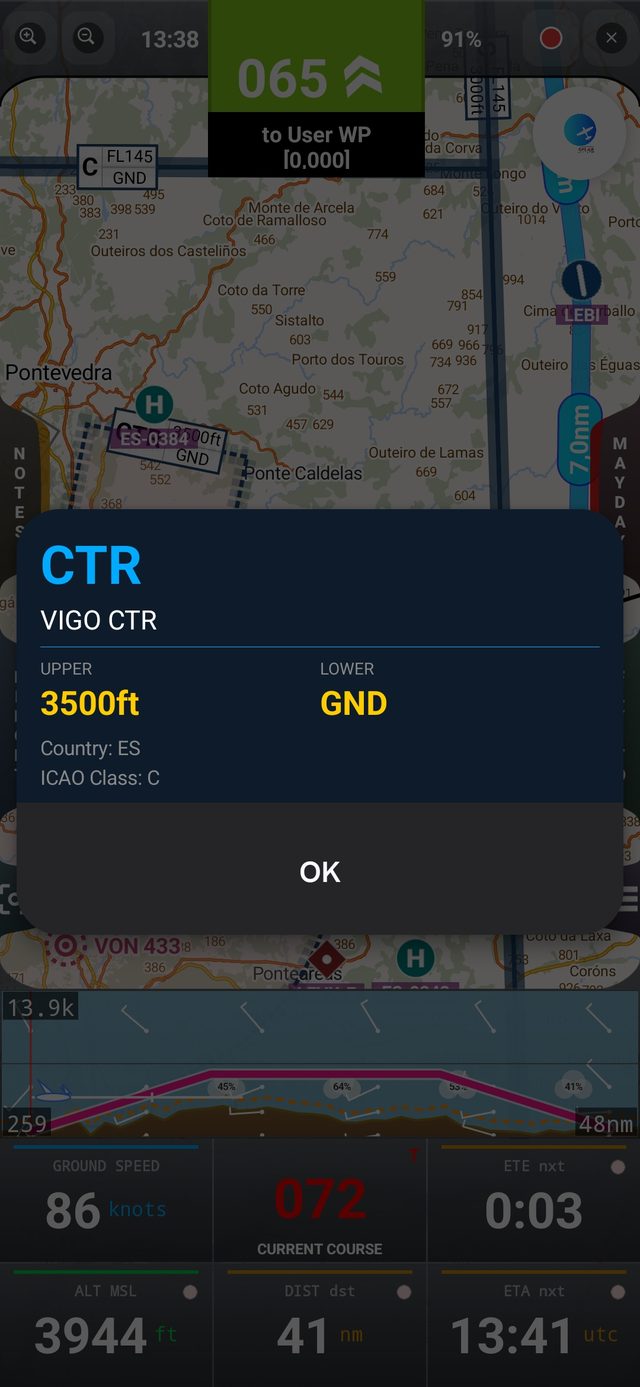
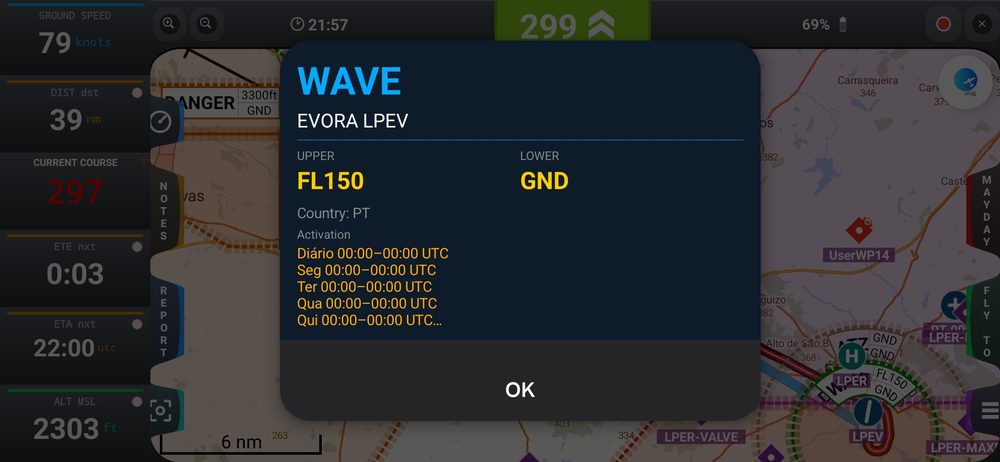
- Tap any airspace zone on the map to see its upper/lower limits and country
/sdcard/GPSAirNavigator/AirSpaces/Custom and selected as "Custom". Keep files under 1 MB to avoid slowing down the app.Airspace labels (class, upper and lower limit) are now drawn entirely inside the zone, so they no longer cover its outline; in round zones such as circular CTRs the label is curved and follows the contour. Tap the label to open the zone details.
Airspace: types, names and the vertical profile
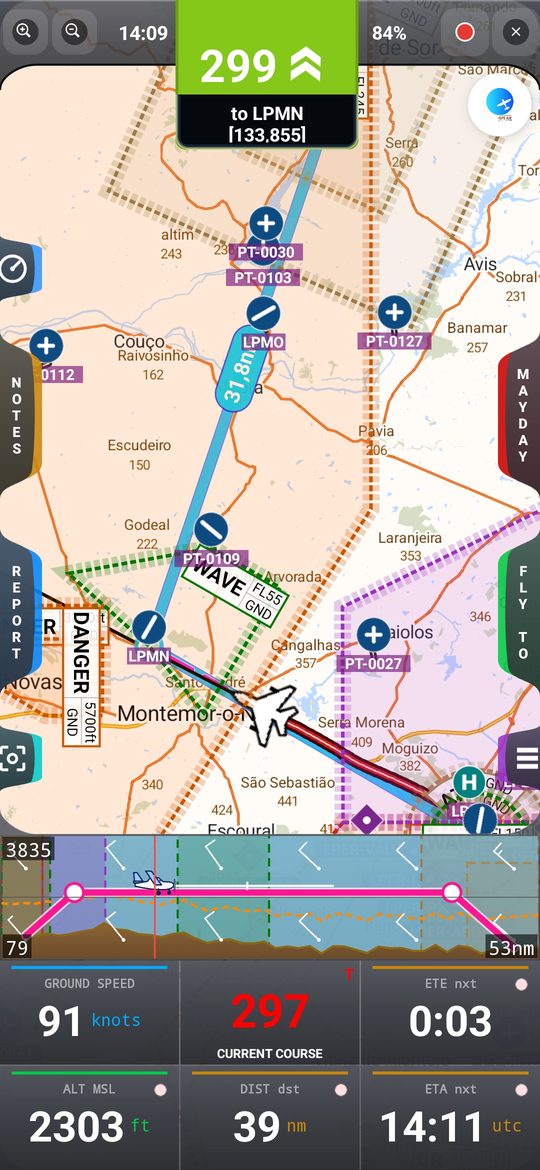
- New types: TRA (purple) and TSA (magenta) are shown dashed, and DANGER, TRA and TSA have their own Show / Warn rows. ATZ and RMZ have new colours and ATZ is dashed.
- Classification by name: zones whose name contains RMZ, ATZ or TMZ, or that start with TMA, TRA, TSA, CTR or CTA, are shown with that type even when the source data says class G or D. Touching a label always opens the zone on top.
- Where to show it: the Airspace window has a Map / Profile / Both selector. In Profile or Both, the zones the route crosses are drawn on the terrain graph and on the GRAMET, with their real lower and upper limits (only classes with Show ticked).
- The zone details show the published activation hours (UTC) and remarks. Real-time activation of TRA / TSA is not available: always check NOTAMs and the AUP.
Map Overlays
11. Map Layers
Tap the LAYERS button on the main screen to quickly toggle everything drawn over the map.
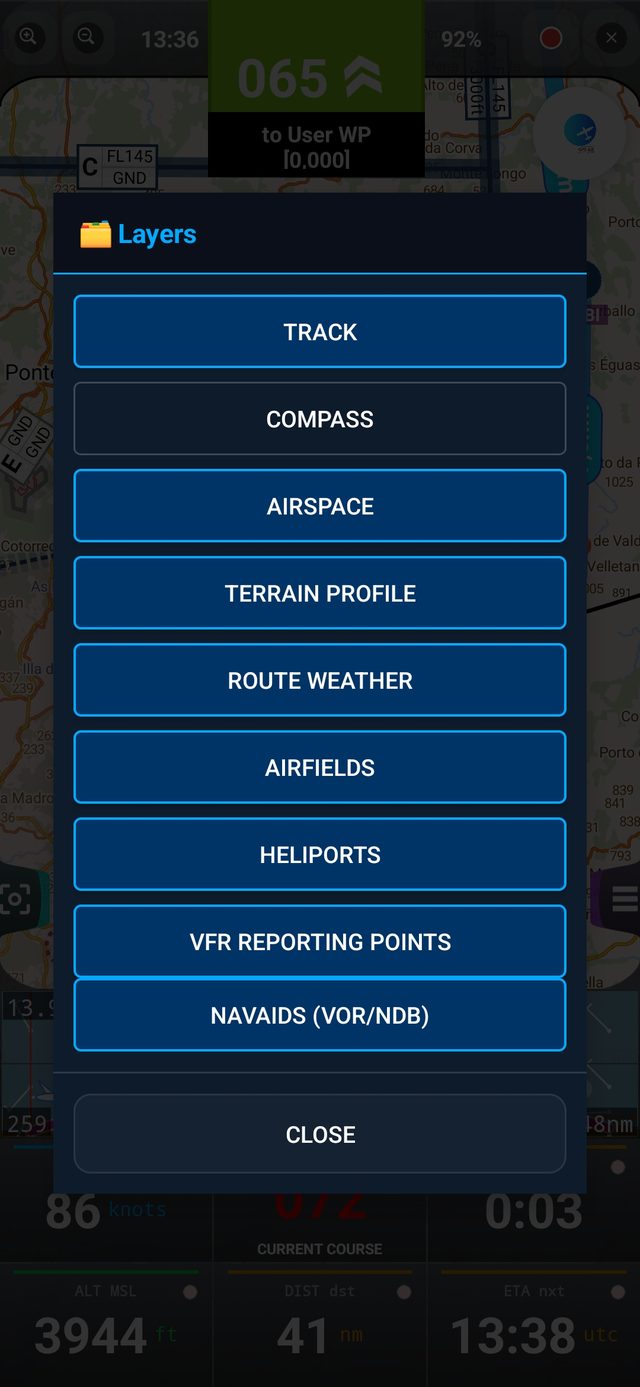
- Track, Compass, Airspace, Terrain Profile, Route Weather — as before
- Airfields (on by default) — aerodromes and their runways
- Heliports (off by default) — heliports and helipads
- VFR Reporting Points (on) — purple and red diamonds
- Navaids (VOR/NDB) (on) — shown from a medium zoom level; identifier and frequency appear when you zoom in further
- Flight simulator — visible only if enabled in Onboarding or Settings; see Flight Simulator Mode
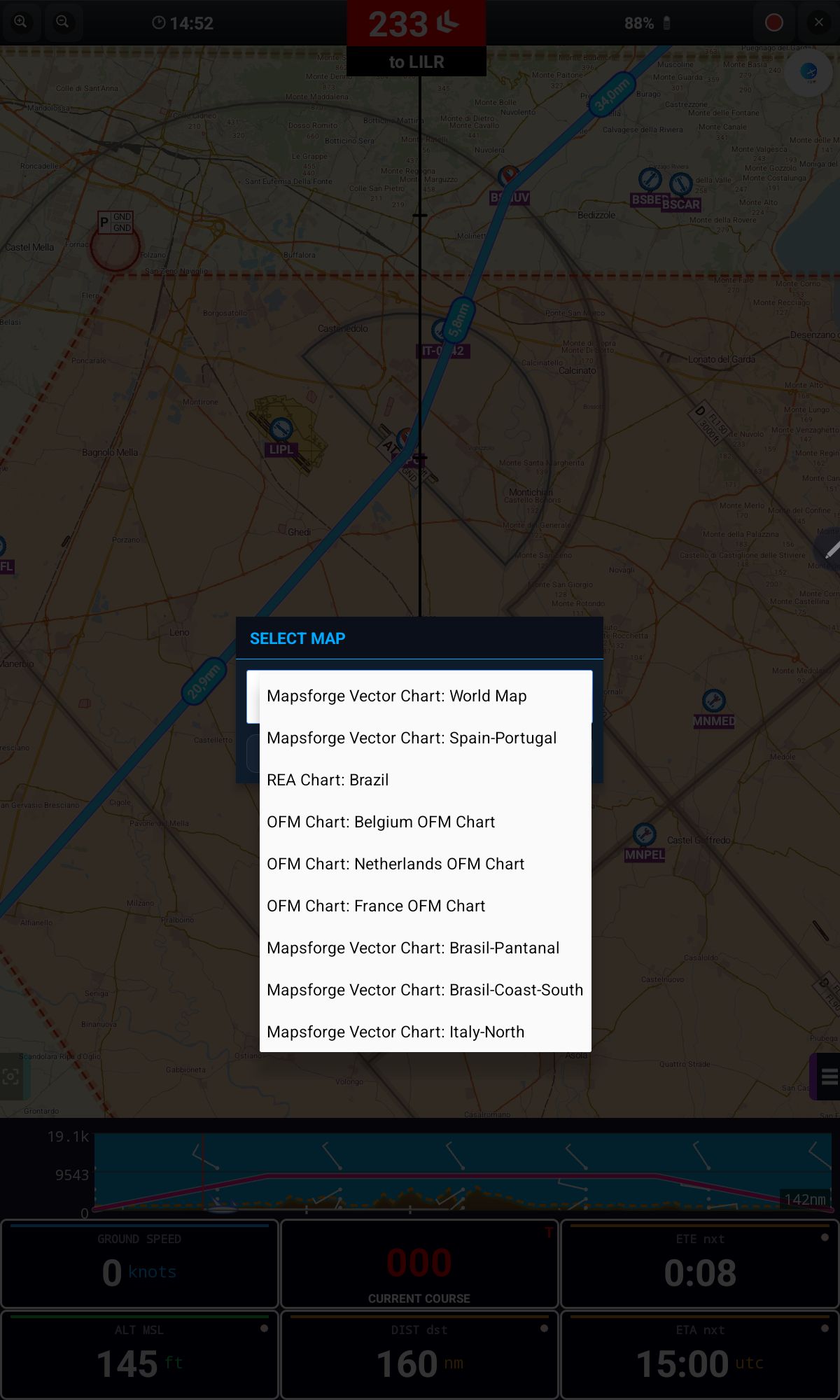
Use Map on the top bar to choose which downloaded chart is shown at any given time and location.
Talk to ATC
12. Position Report
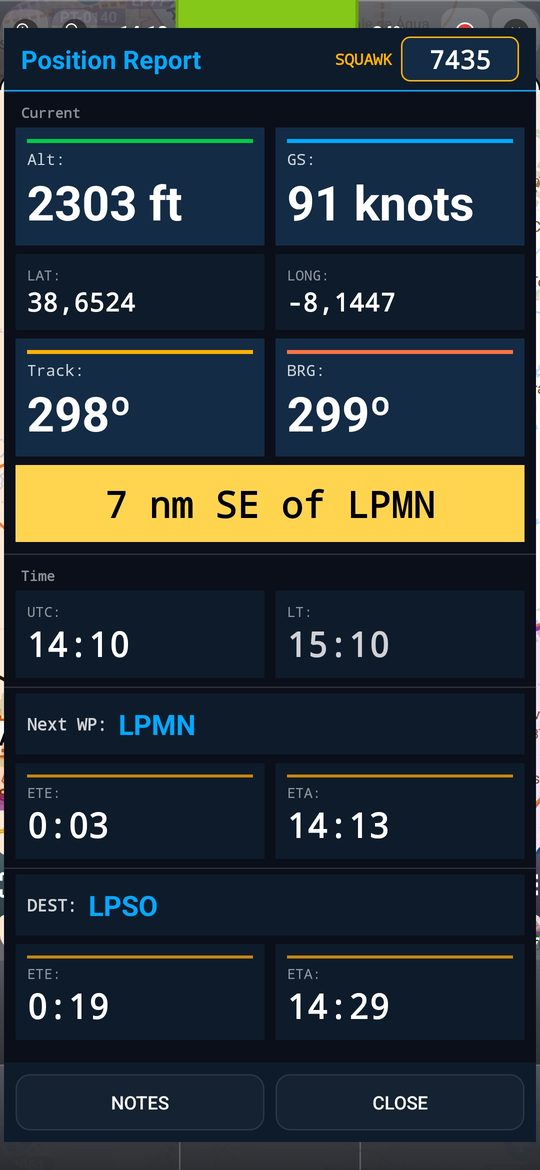
The REPORT button opens a clear summary of your current situation — perfect for reporting to ATC or a flight-following contact.
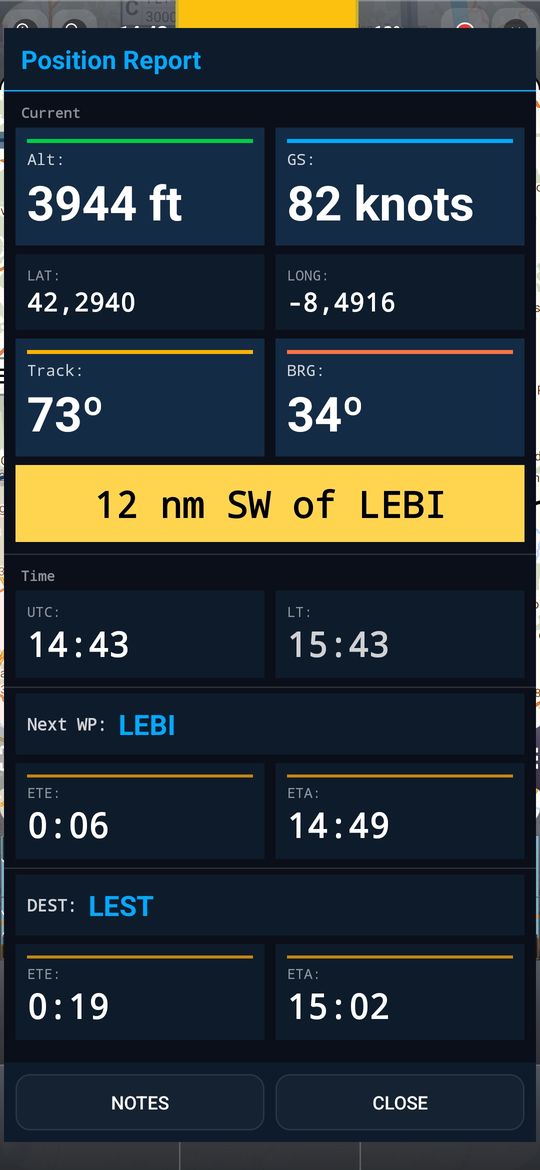
The Position Report was redesigned to be readable in bright sunlight: the position phrase (e.g. 12 nm SW of LEBI) is in black on an amber box, and altitude, ground speed, track and bearing are larger, each with a coloured bar. Next WP and DEST now share a line with the waypoint name, so the whole report fits on one screen without scrolling.
Squawk
The header of the Position Report has a SQUAWK field where you can type the transponder code the controller gives you (four digits, 0–7). It is cleared when you close the app and kept when you rotate the screen.
Emergency
13. MAYDAY
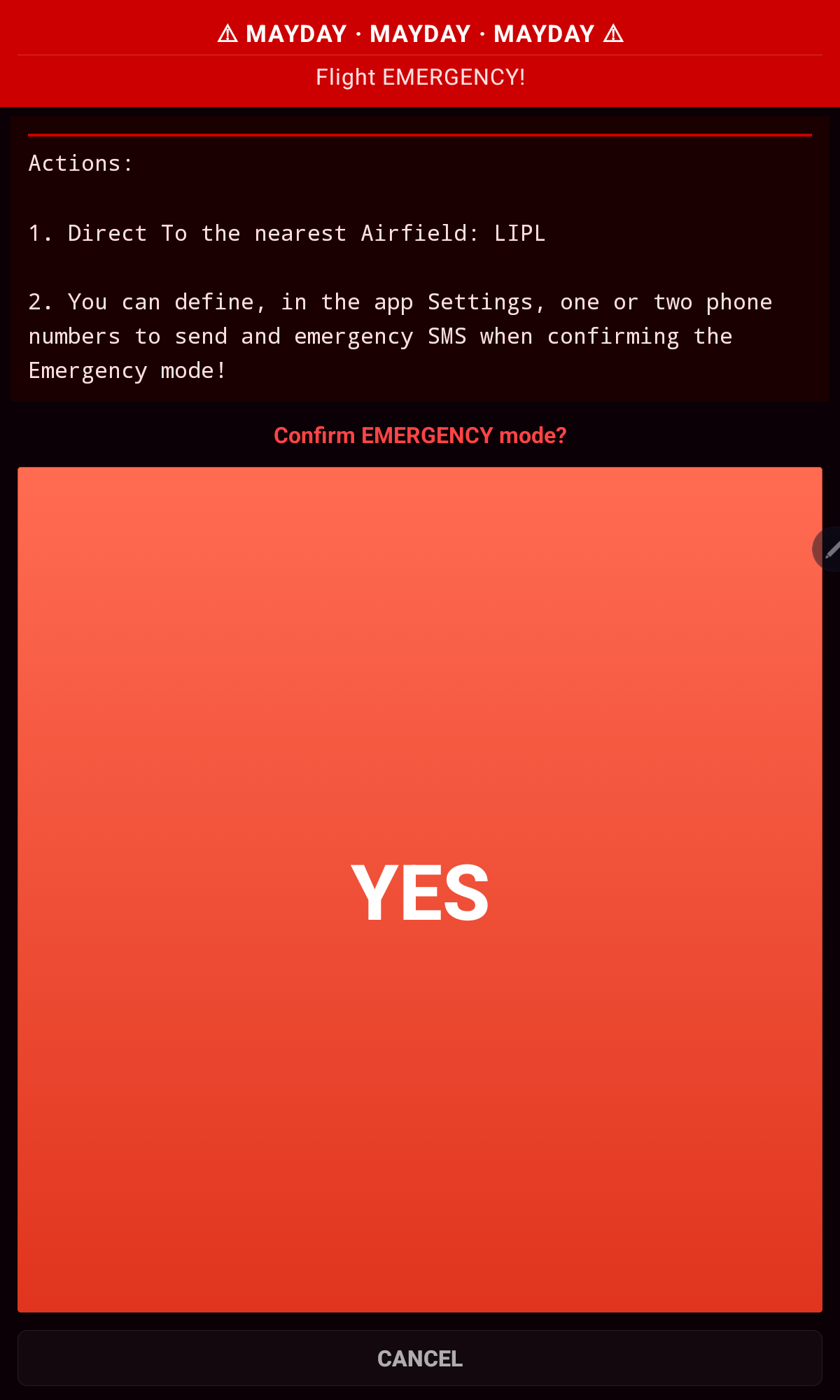
The MAYDAY button should be used only in a genuine flight emergency. Pressing it performs two actions after confirmation:
- Automatically sends an SMS with your current position to up to two mobile numbers set in Settings (requires mobile signal and an SMS-capable device)
- Activates a direct route to the nearest waypoint
Nearest aerodrome and emergency numbers
- MAYDAY now always chooses the nearest aerodrome — heliports, reporting points and your own reference points are ignored — regardless of the filters and layers you have on screen.
- The MAYDAY screen has a button to define the emergency phone numbers (one or two) right there; with numbers defined it becomes a small Edit / add button. The same numbers are in Settings.
Jot It Down
14. Notes
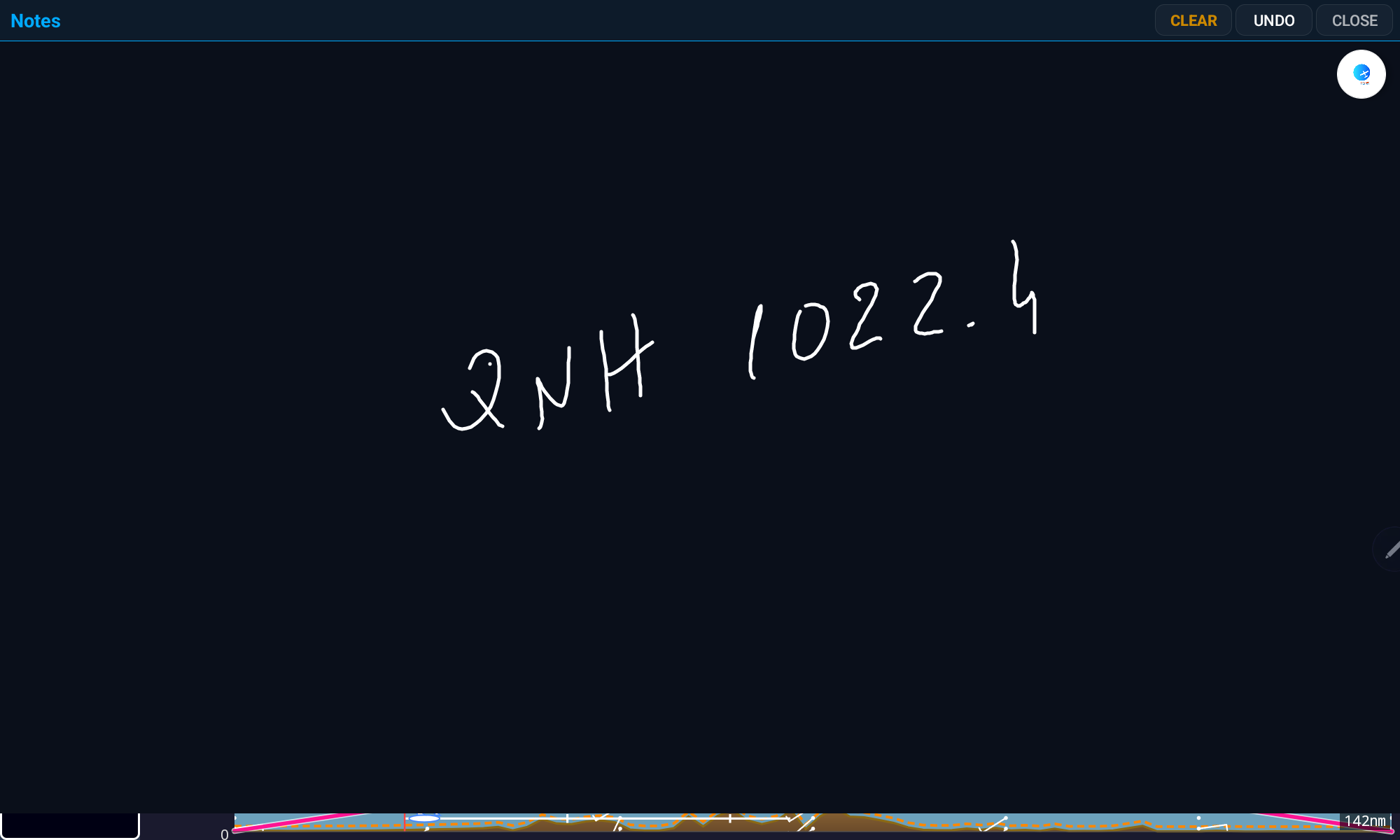
The NOTES button opens a simple black canvas where you can hand-write anything you need mid-flight — QNH, wind, frequencies, clearances.
Your Flight History
15. Logbook
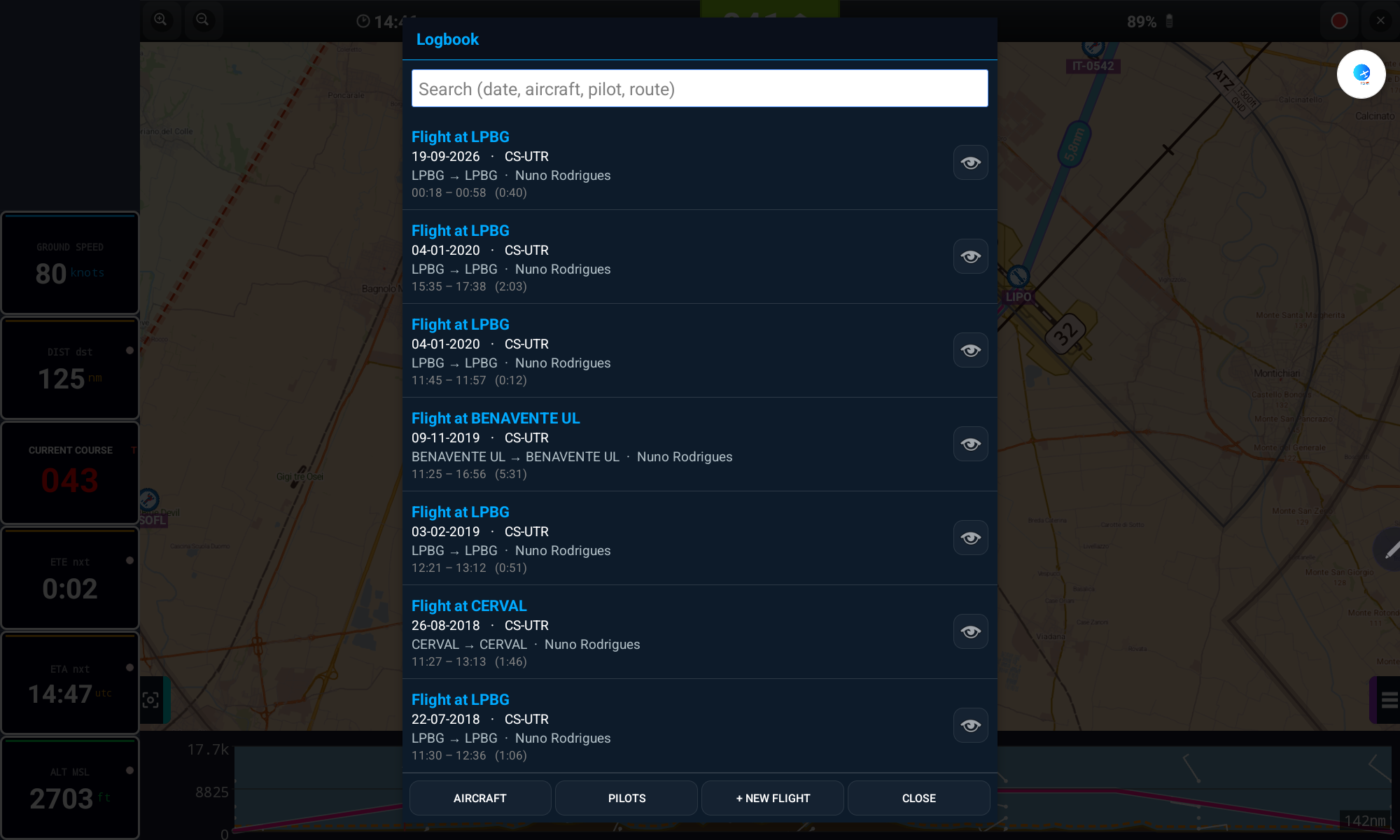
Every flight can be recorded automatically or started manually, then reviewed later with full statistics.
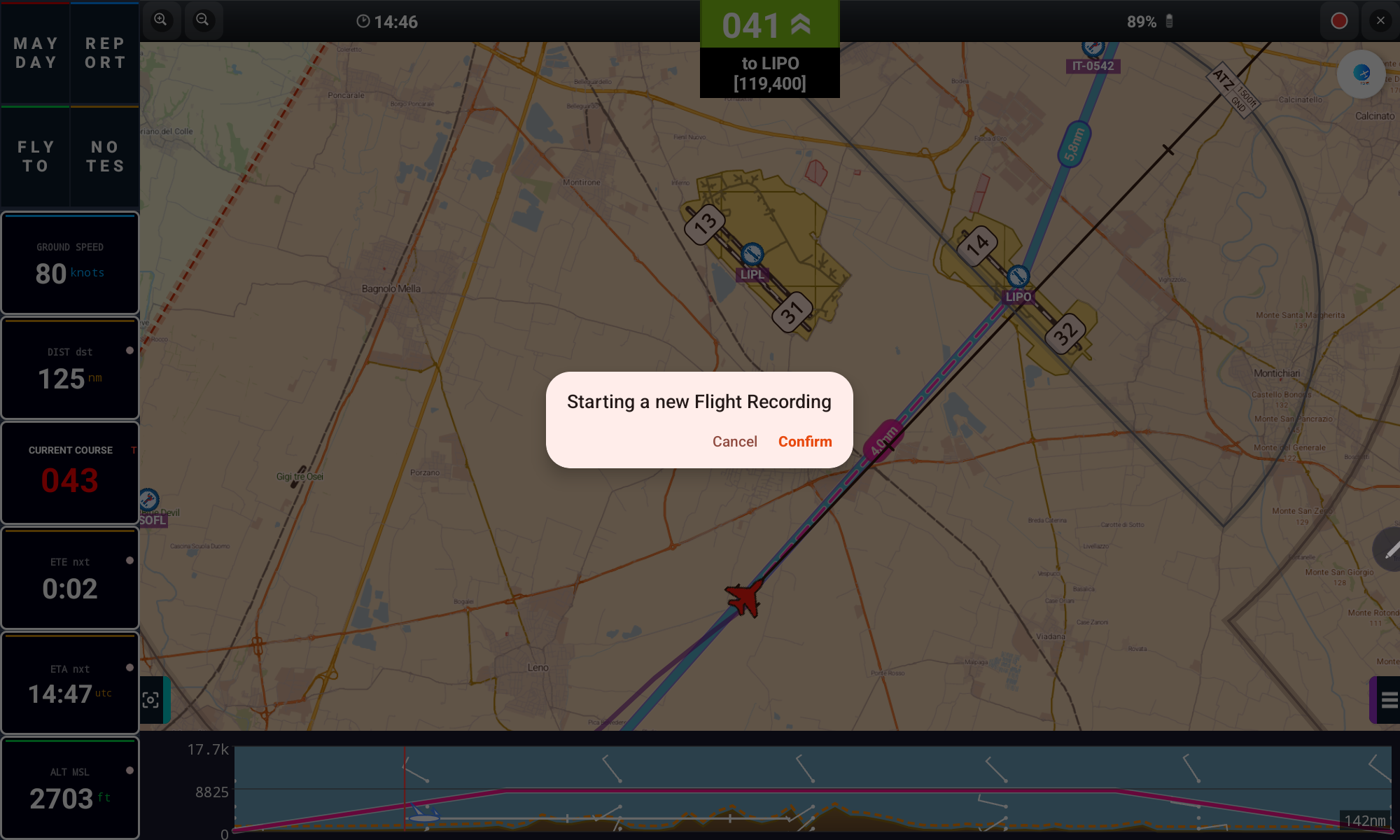
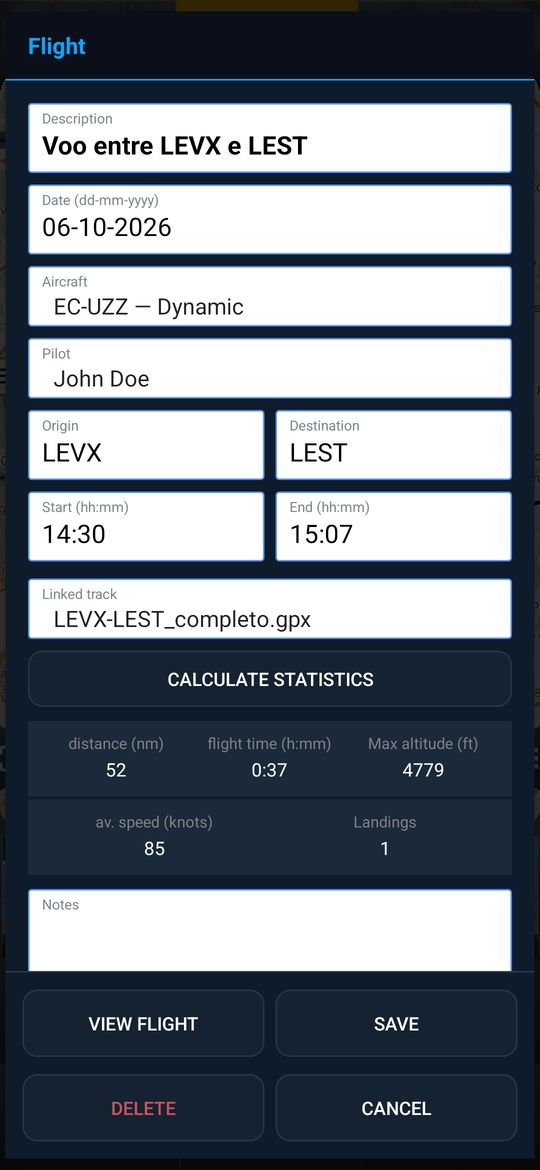
- Tap CALCULATE STATISTICS to get distance, flight time, max altitude and average speed
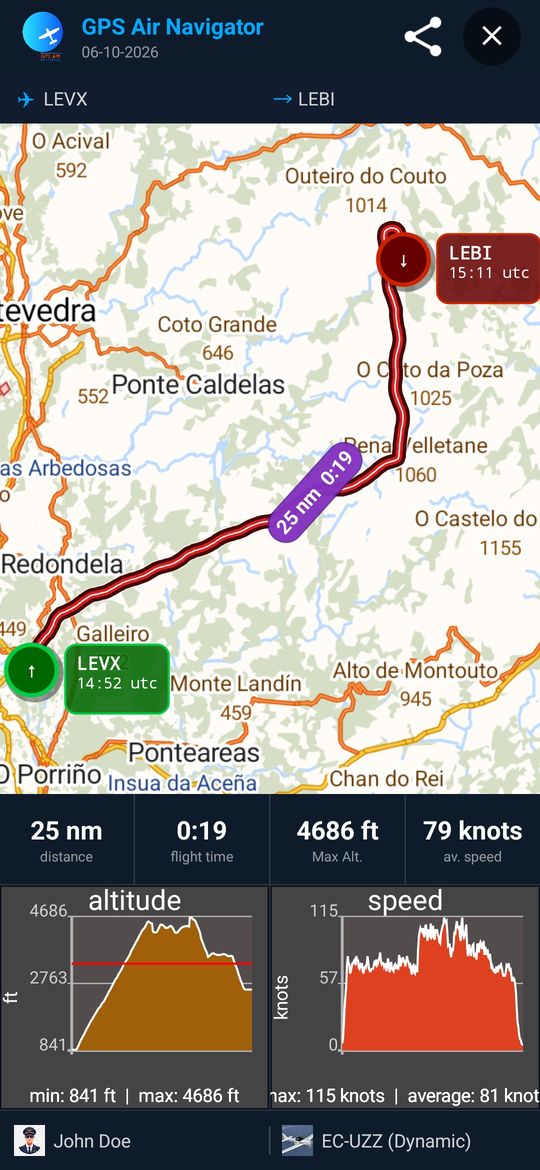
- Tap the share icon to export the flight as an image or send it by email / social media
- Manage Aircraft and Pilots from the Logbook screen buttons
- When you close the app after a flight, it offers to show the flight statistics — they open in the Logbook, where all your recorded flights are listed
Landings and editable statistics
- The flight detail has a Landings box. It is counted automatically from the track (touch-and-go landings included) when you tap CALCULATE STATISTICS; type your own number to override it — a number you type is never overwritten, and clearing the box goes back to automatic. Flights recorded in older versions are counted the first time you open a summary
- Distance, flight time, max altitude and average speed can be edited by hand — handy for imported GPX files without time data (the duration accepts h:mm or just minutes)
- The shared image uses the times and values of the flight detail
Logbook summary by pilot and by aircraft
Totals for any period, at a glance:
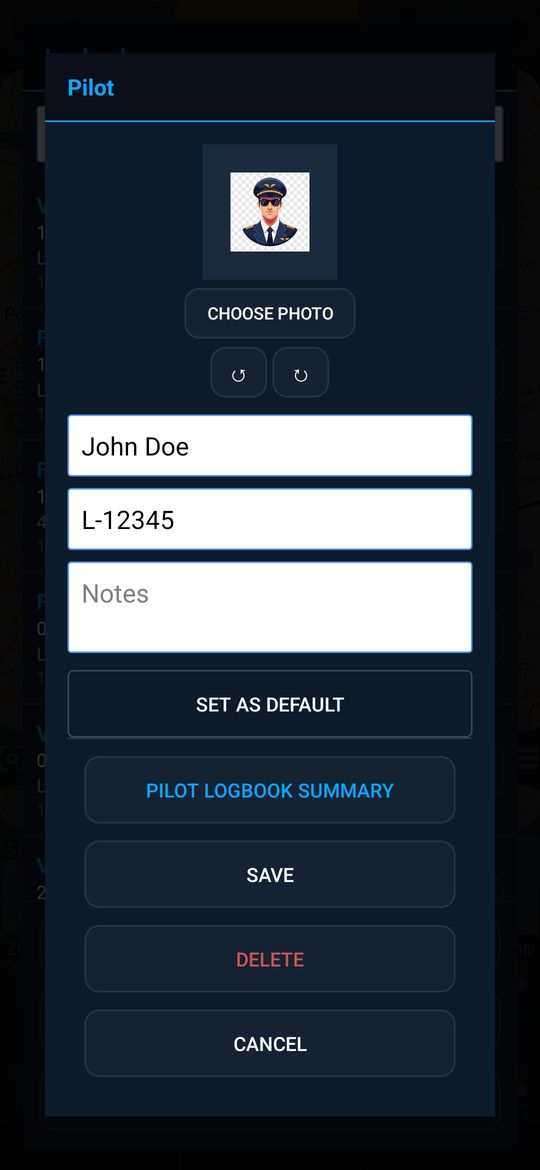
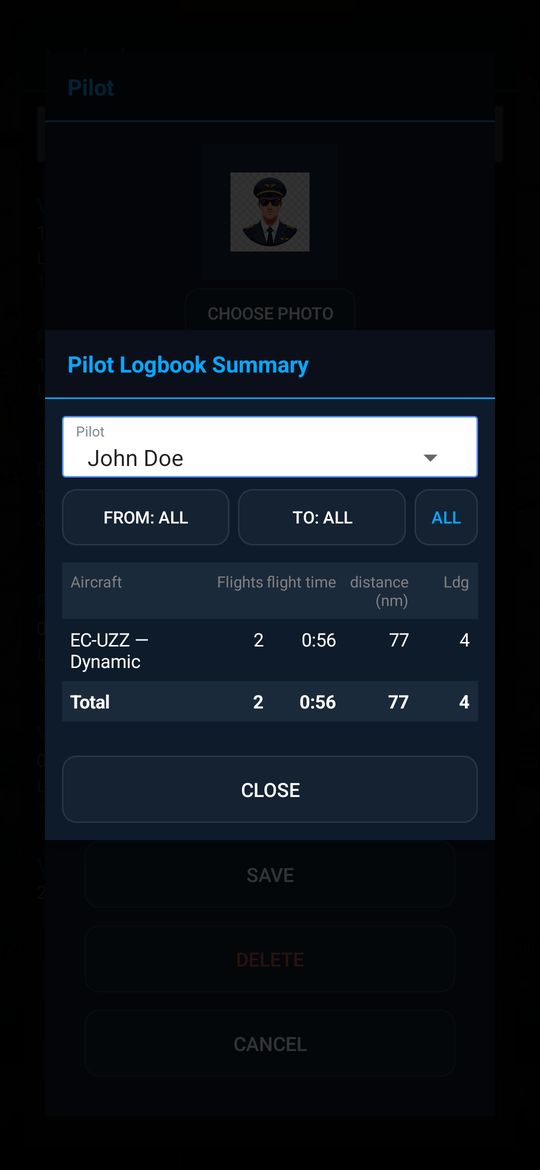
- Open a pilot and tap PILOT LOGBOOK SUMMARY: choose the pilot and the period (FROM / TO, or ALL) and see, per aircraft, the number of flights, flight time, distance and landings, plus the totals
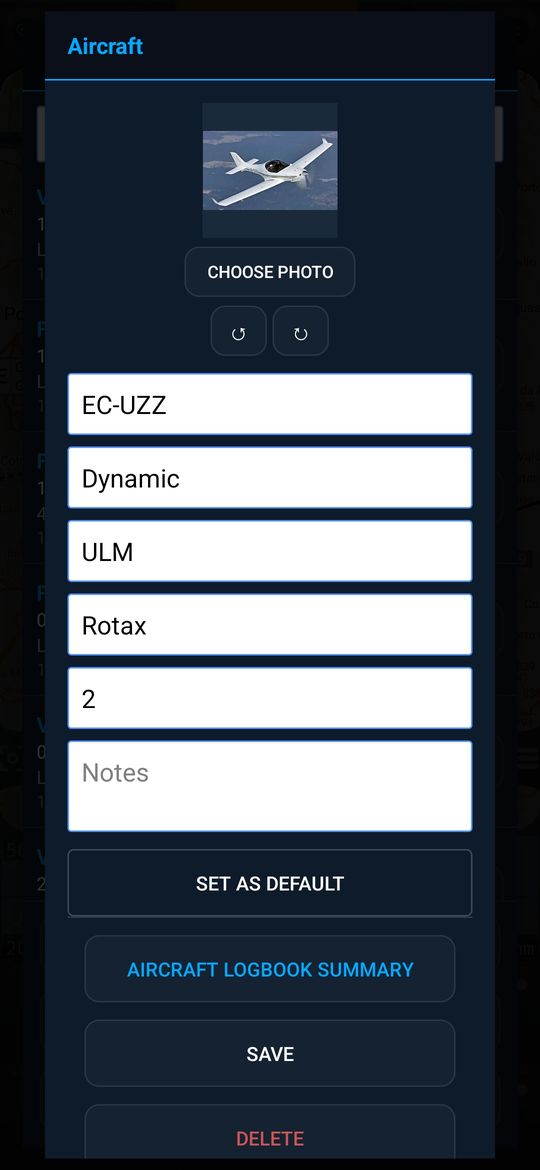
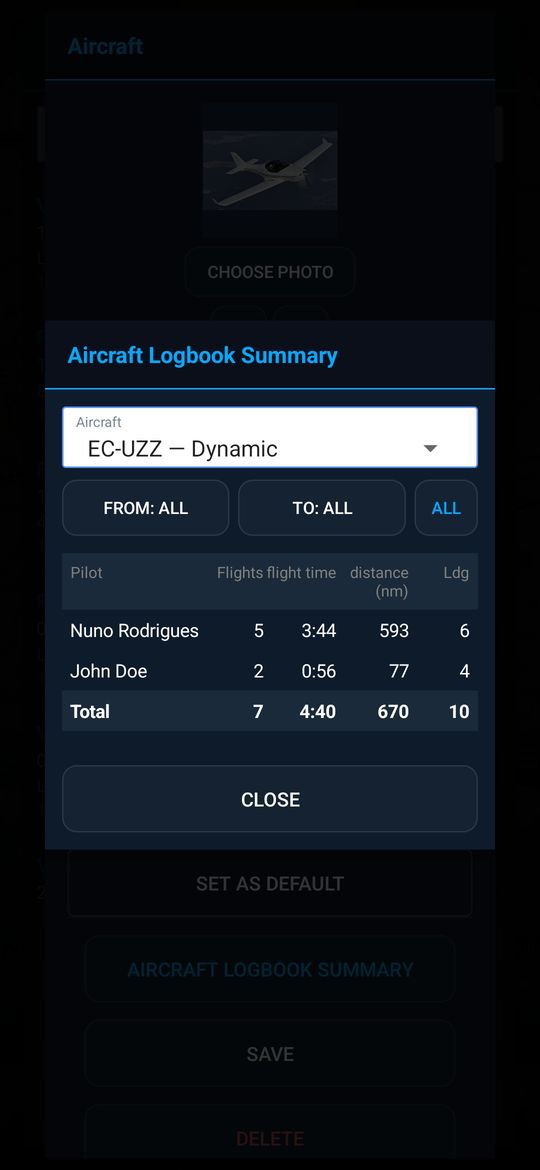
- Open an aircraft and tap AIRCRAFT LOGBOOK SUMMARY: the same table, grouped by pilot
- Both summaries are also one tap away from the Pilots and Aircraft lists, next to the NEW button
Make It Yours
16. Settings
Fine-tune the app to your preferences and your aircraft.
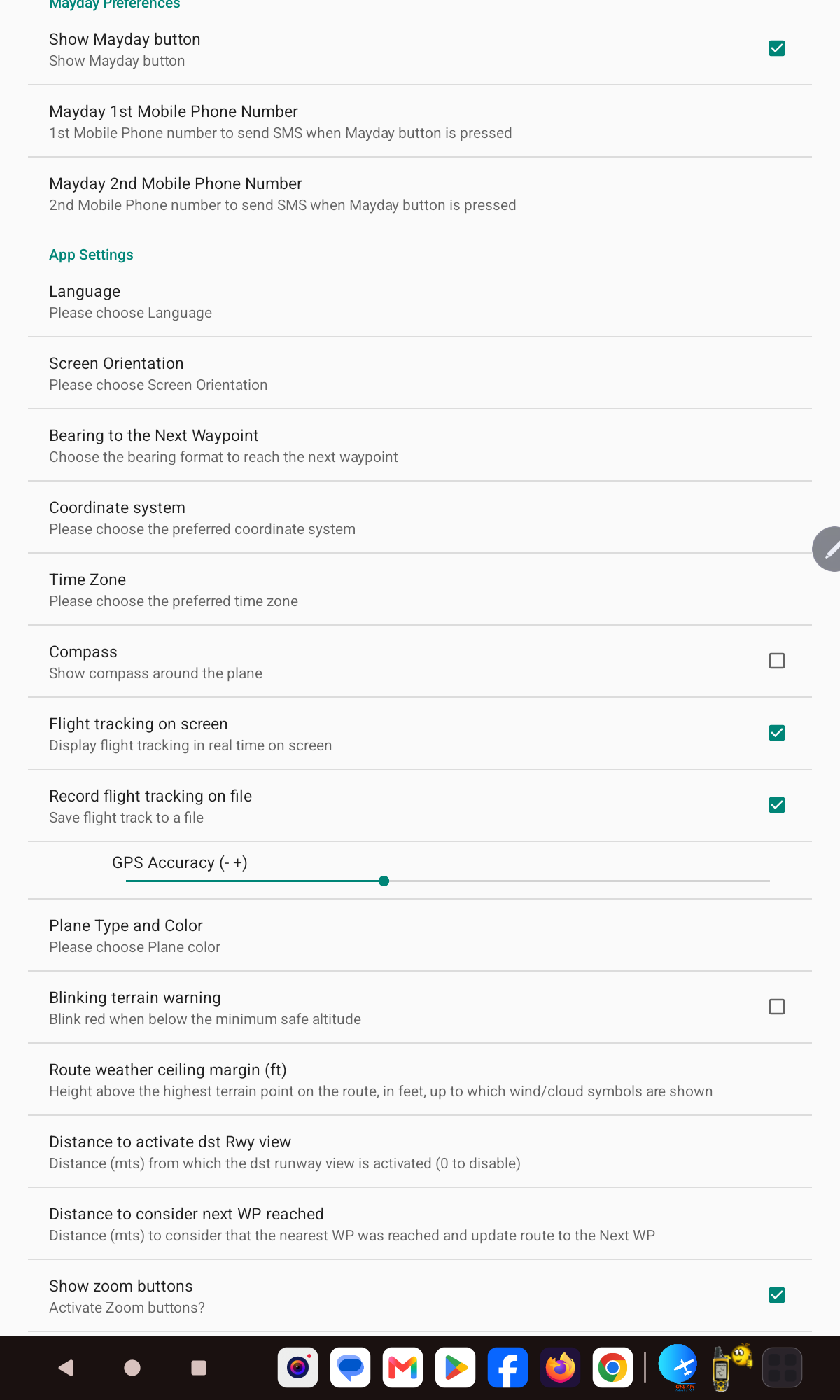
- MAYDAY phone numbers and button visibility
- Language, screen orientation, coordinate system and time zone
- Compass, flight tracking and GPS accuracy
- Plane color/type, terrain warning and units for every measurement
- Route weather ceiling margin and waypoint-arrival distance
- Flight simulator mode (shows the simulator button in the Layers panel)
Power Features
17. Advanced Features
Import / Export Waypoints
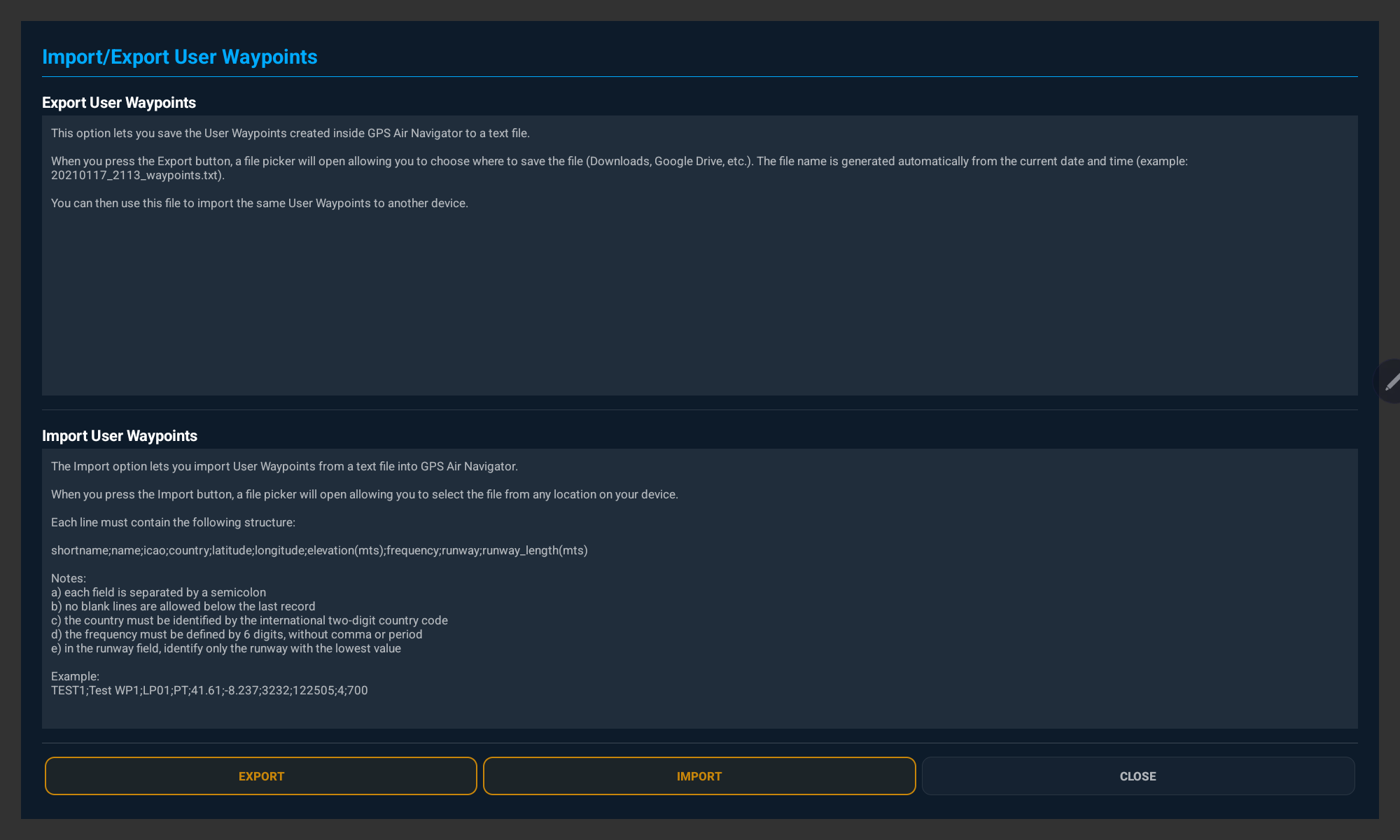
- Export saves all your User Waypoints to a text file you choose where to store
- Import reads a semicolon-separated text file back into the app
- Format:
shortname;name;icao;country;latitude;longitude;elevation(m);frequency;runway;runway_length(m);kind - An optional 11th field,
kind(0 = Airfield, 1 = Reference point), is also exported. Older files without it are imported as Airfield when they have a runway, and as Reference point otherwise.
Navigation with True or Magnetic North
Tap the Current Course value to switch between True (T) and Magnetic (M) North at any time; the default can also be set in Settings. Magnetic declination is calculated automatically from your position.
Practise at Home
18. Flight Simulator Mode
Use GPS Air Navigator with X-Plane or Microsoft Flight Simulator running on your PC. The aircraft position, track, speed and altitude come from the simulator instead of your device's GPS, so you can practise routes, learn the app and rehearse a flight before flying it for real.
Compatible simulators
- X-Plane 11 and 12 — connects directly, no extra software needed
- Microsoft Flight Simulator 2020 and 2024 — through a small free program running on the PC (fs2ff or FS2020 to NMEA)
- The PC and your phone or tablet must be on the same Wi-Fi network
Turn it on
- On the first start, the Onboarding screen offers a Flight simulator mode switch. Turn it on if you want to use the app with a simulator.
- You can change this at any time in Settings › App Settings › Flight simulator mode.
- When it is on, a Flight simulator button appears at the end of the LAYERS panel. When it is off, the button is hidden.
Connect X-Plane (11 and 12)
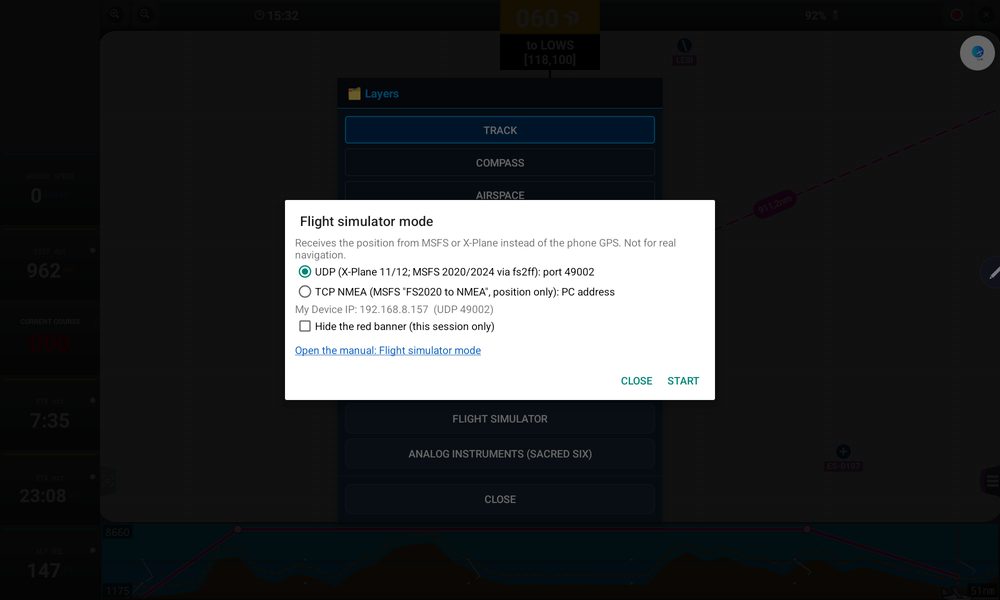
- In the app, open LAYERS › Flight simulator and choose UDP. The window shows your device's IP address — note it — then tap START. The app now waits for the simulator.
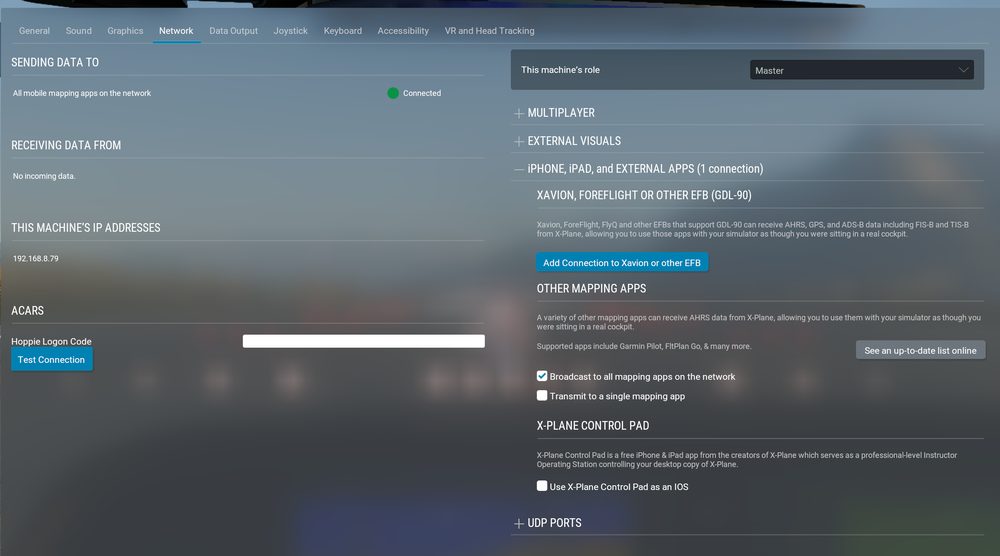
- X-Plane 12: go to Settings › Network, expand iPhone, iPad, and external apps and tick Broadcast to all mapping apps on the network. Alternatively, tick Transmit to a single mapping app and type your device's IP address. The Add Connection to Xavion or other EFB button is not needed.
- X-Plane 11: go to Settings › Network, open iPhone & iPad and either tick the broadcast option or enter your device's IP address (port 49002).
- Load a flight. X-Plane only starts sending data once a flight is running; the aircraft then appears on the map within a few seconds.
Connect Microsoft Flight Simulator (2020 and 2024)
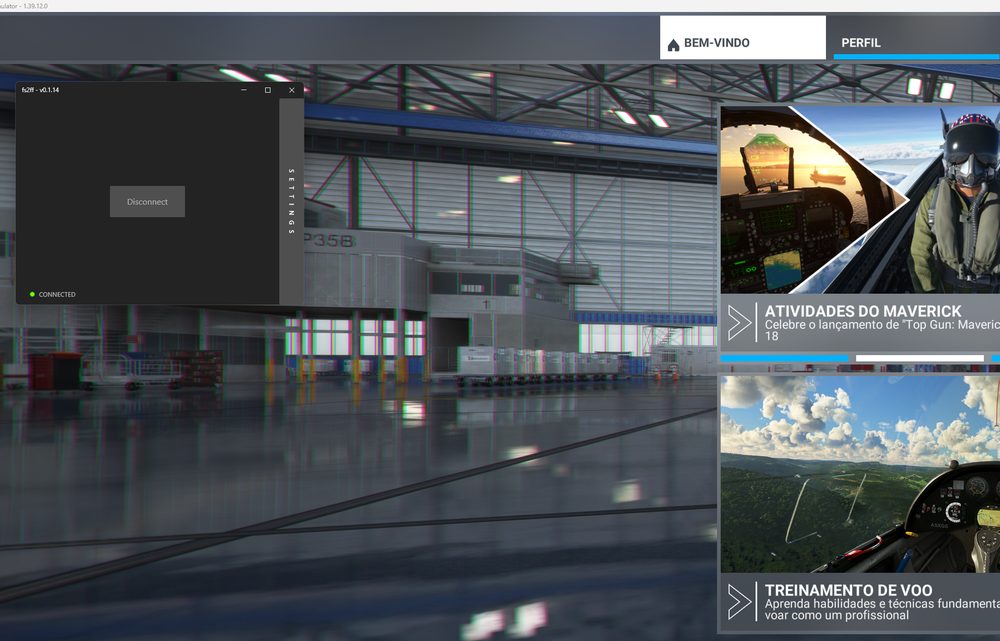
The recommended way uses fs2ff (Flight Simulator to ForeFlight), a free community program for Windows that sends the position over UDP — the same option used for X-Plane.
- On the PC, download fs2ff (search for fs2ff on GitHub) and run it. If Windows asks, allow it through the firewall.
- In the app, open LAYERS › Flight simulator, choose UDP, note the device's IP address and tap START.
- Start MSFS and load a flight. In fs2ff, turn Auto Detect off, type your device's IP address and click Connect.
Alternative for MSFS: TCP NMEA
- On the PC, run FS2020 to NMEA (free, available on flightsim.to) before starting a flight — ideally while MSFS is at the main menu. Allow it through the Windows firewall; it shows the PC's IP address.
- In the app, choose TCP NMEA, type the PC's IP address (the port is 10110) and tap START.
- This program was made for MSFS 2020 and accepts a single connection: if it is lost, restart the program and the flight. If it does not work with MSFS 2024, use fs2ff instead.
While it is running
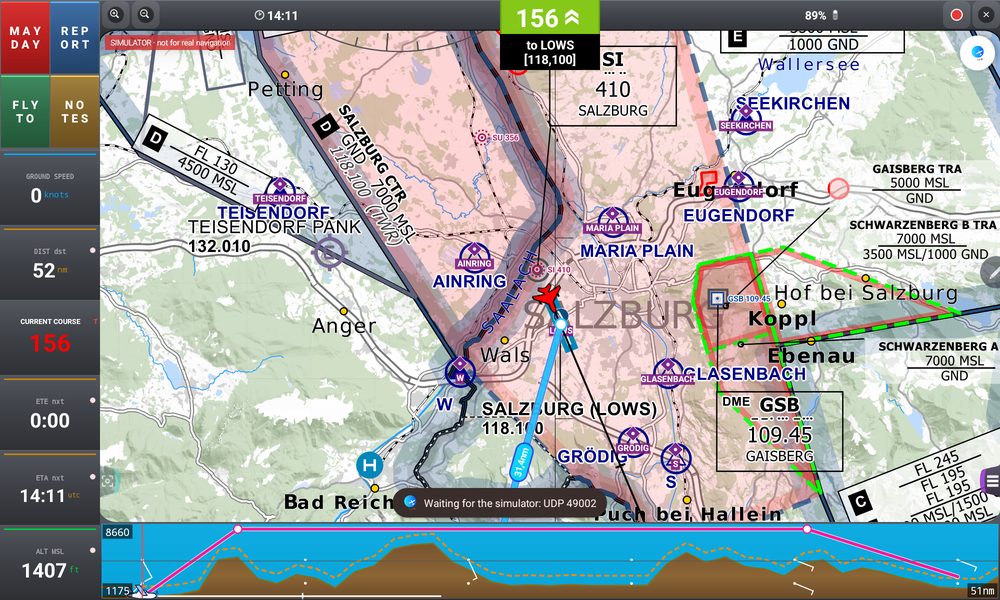
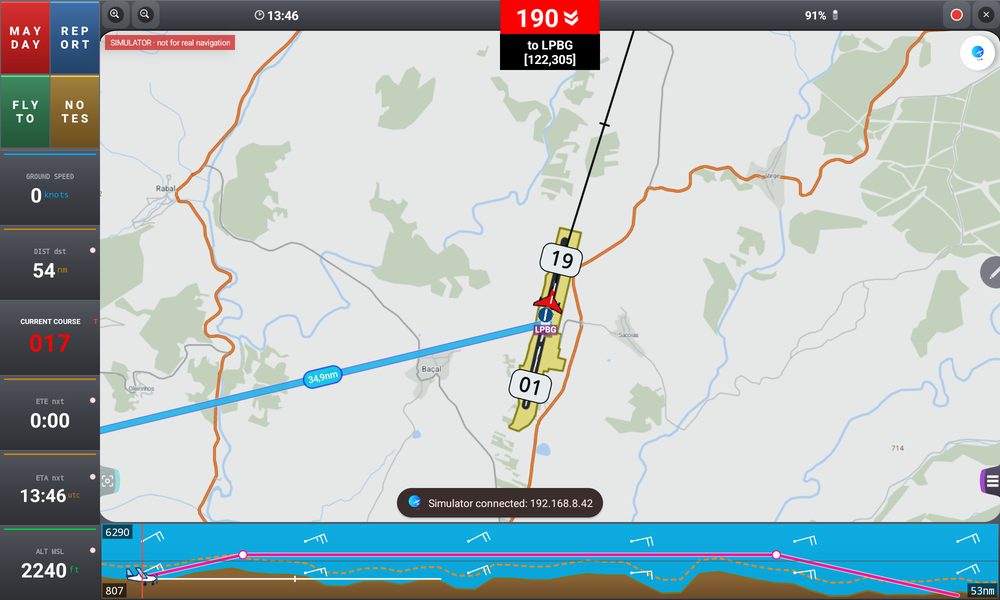
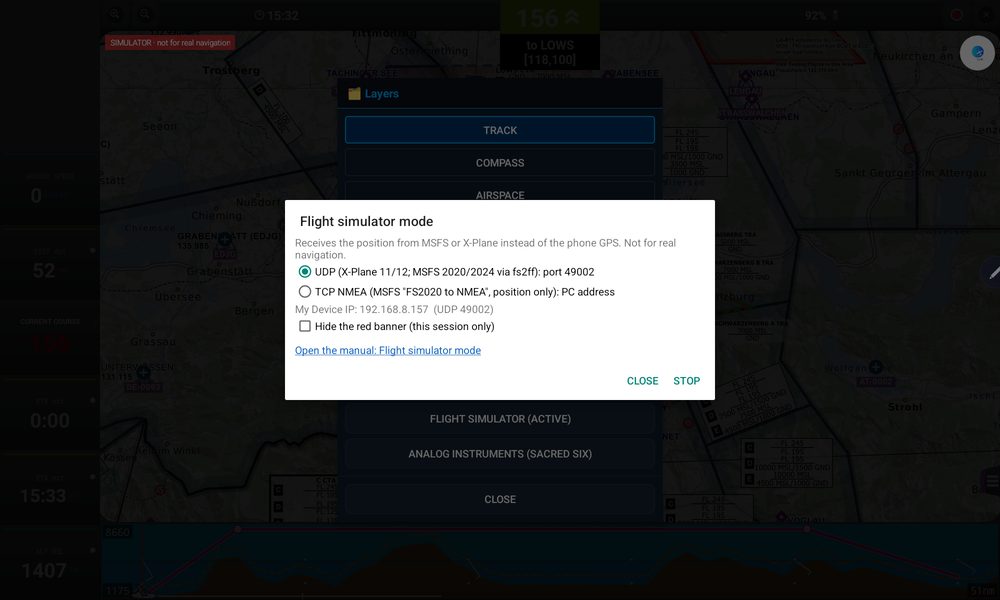
- A red banner at the top left of the map shows that simulator mode is active, and the button in the LAYERS panel reads Flight simulator (ACTIVE)
- Everything works as in real flight — routes, DIRECT TO, airspace alerts, terrain profile
- To stop, open LAYERS › Flight simulator and tap STOP: the app returns to the device's GPS. Turning the option off in Settings also stops it.
- In the Flight simulator window you can tick Hide the red banner (this session only); the banner comes back on the next simulator session. The same window has a link that opens this section of the manual.
Instruments in simulator mode
The analog instruments also work with the simulator. With X-Plane the attitude indicator uses the simulator's own pitch and roll (labelled SIM); with MSFS it is estimated from the position data (GPS).